
Create an AI Team
An AI Team is a team of AI Employees with its own Cloud Computer, files, secrets and schedules. Organization owners and admins create them.
Each AI Team gets its own AI Team Cloud Computer: a private computer in the cloud where its AI Employees work. A team's files, secrets, variables and schedules belong to that team only. Your plan sets how many AI Teams you can have.
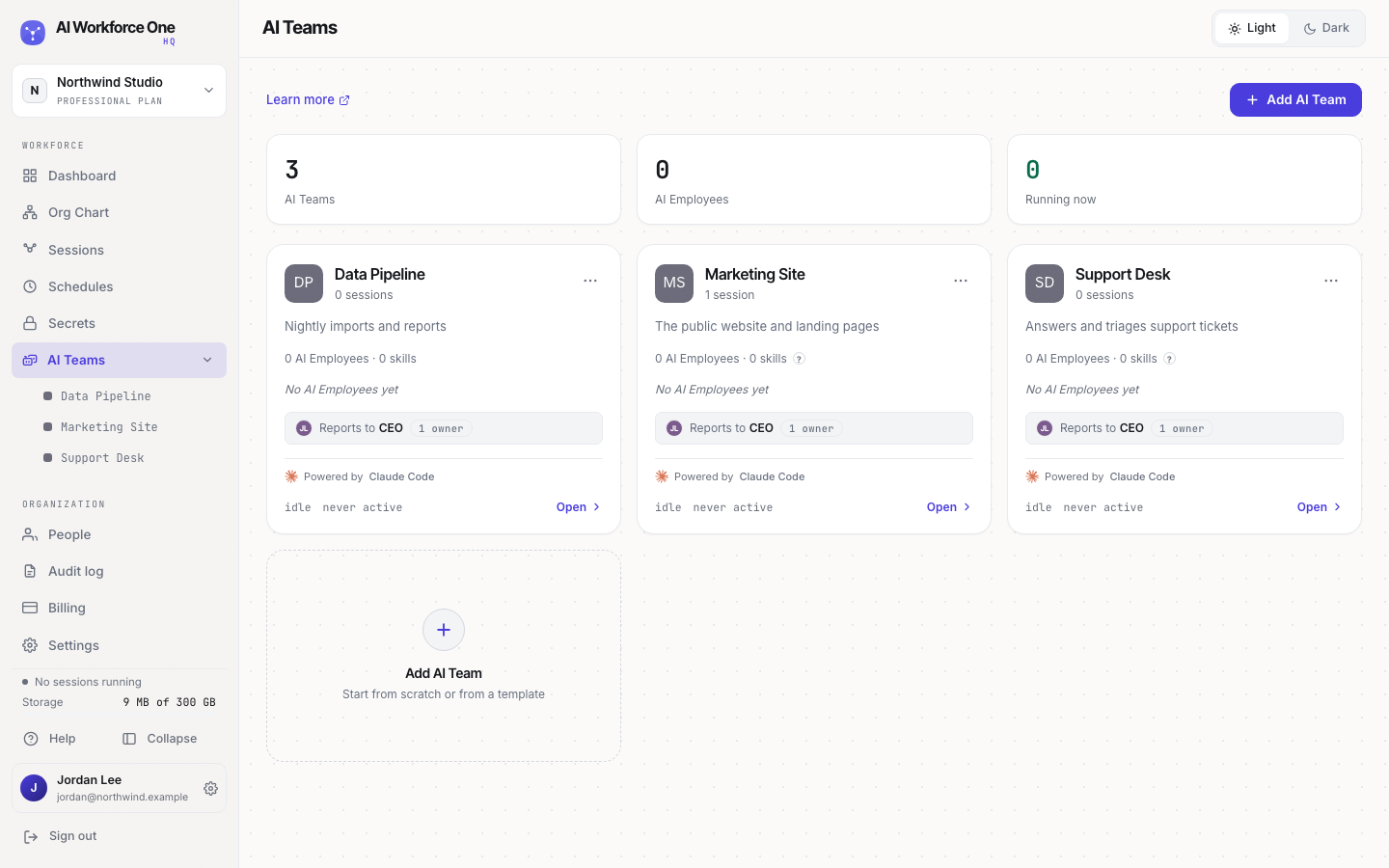
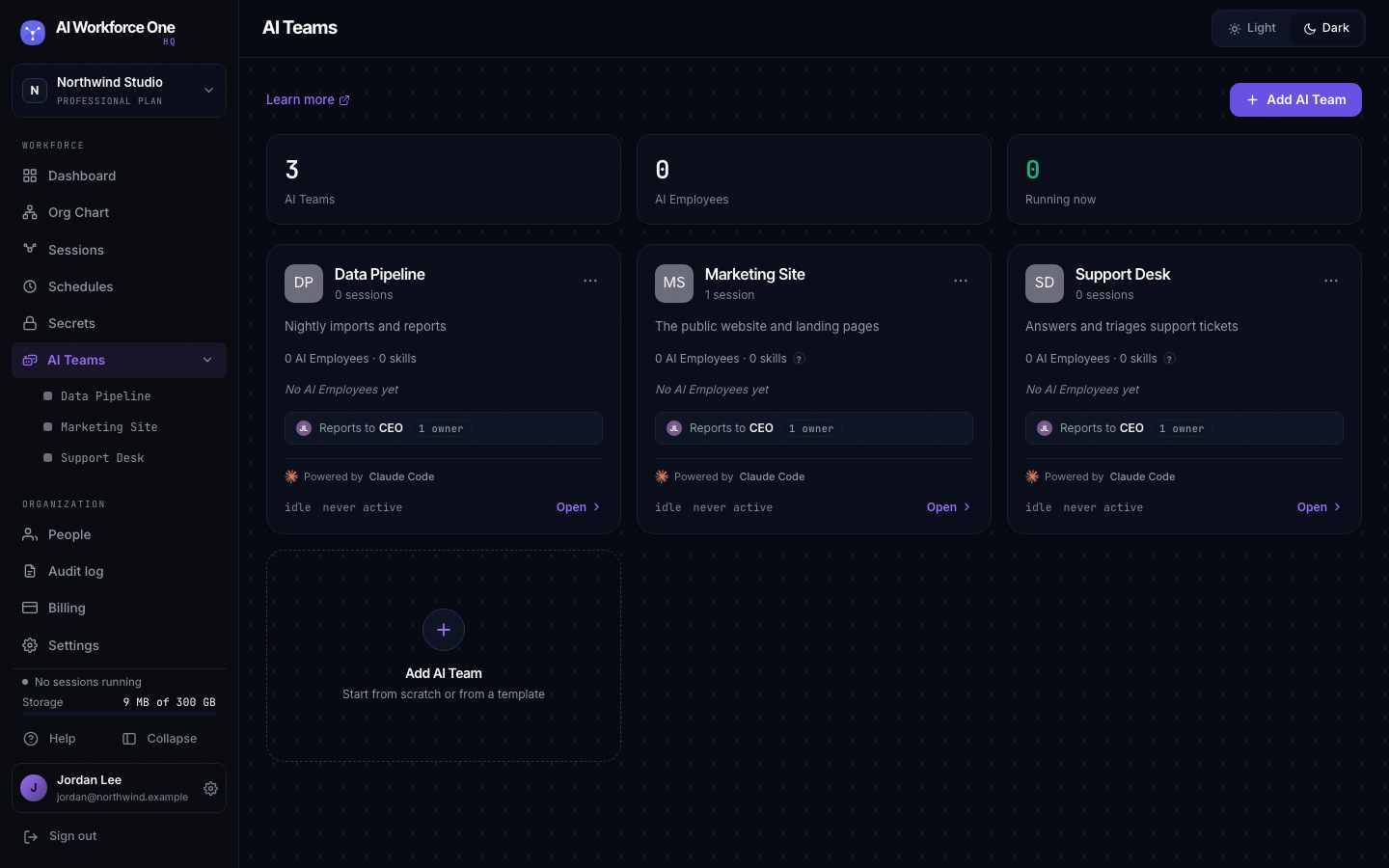
Create a team
- Open AI Teams
Select AI Teams in the sidebar, then Add AI Team. The dialog shows how many AI Teams your plan includes and how many you use.
- Choose how to start
From scratch gives you an empty team. From a template copies a team someone shared with you: paste its link, and the team arrives with its AI Employees, skills, schedules and the list of secrets it needs. Before a template team is created, HQ lists the hooks, connectors and commands it can run, and you confirm each one.
- Name the team and pick its engine
Give the team a name and, if you like, a description. Choose Claude Code (Anthropic) or Codex (OpenAI). The engine can't be changed after the team is created.
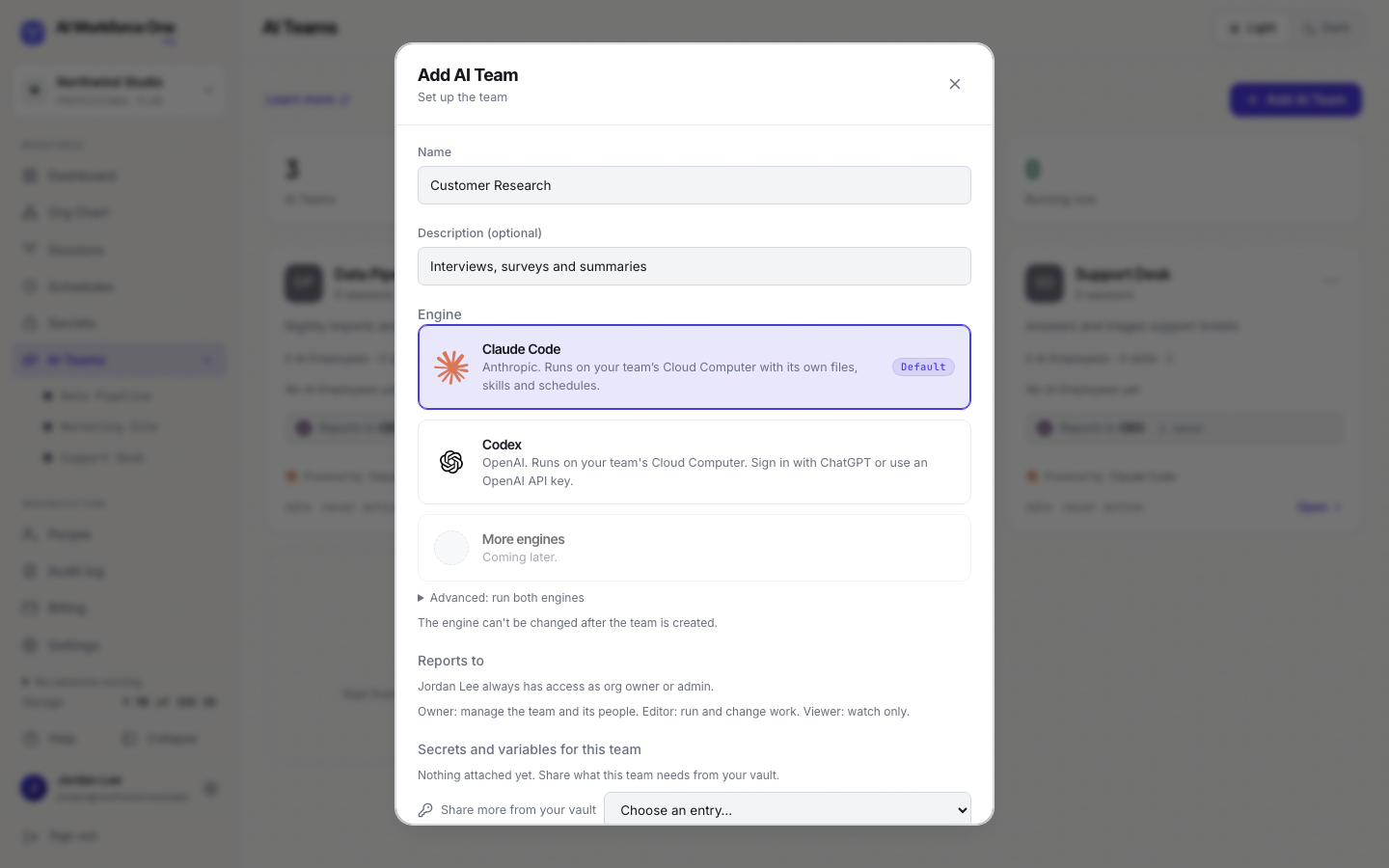
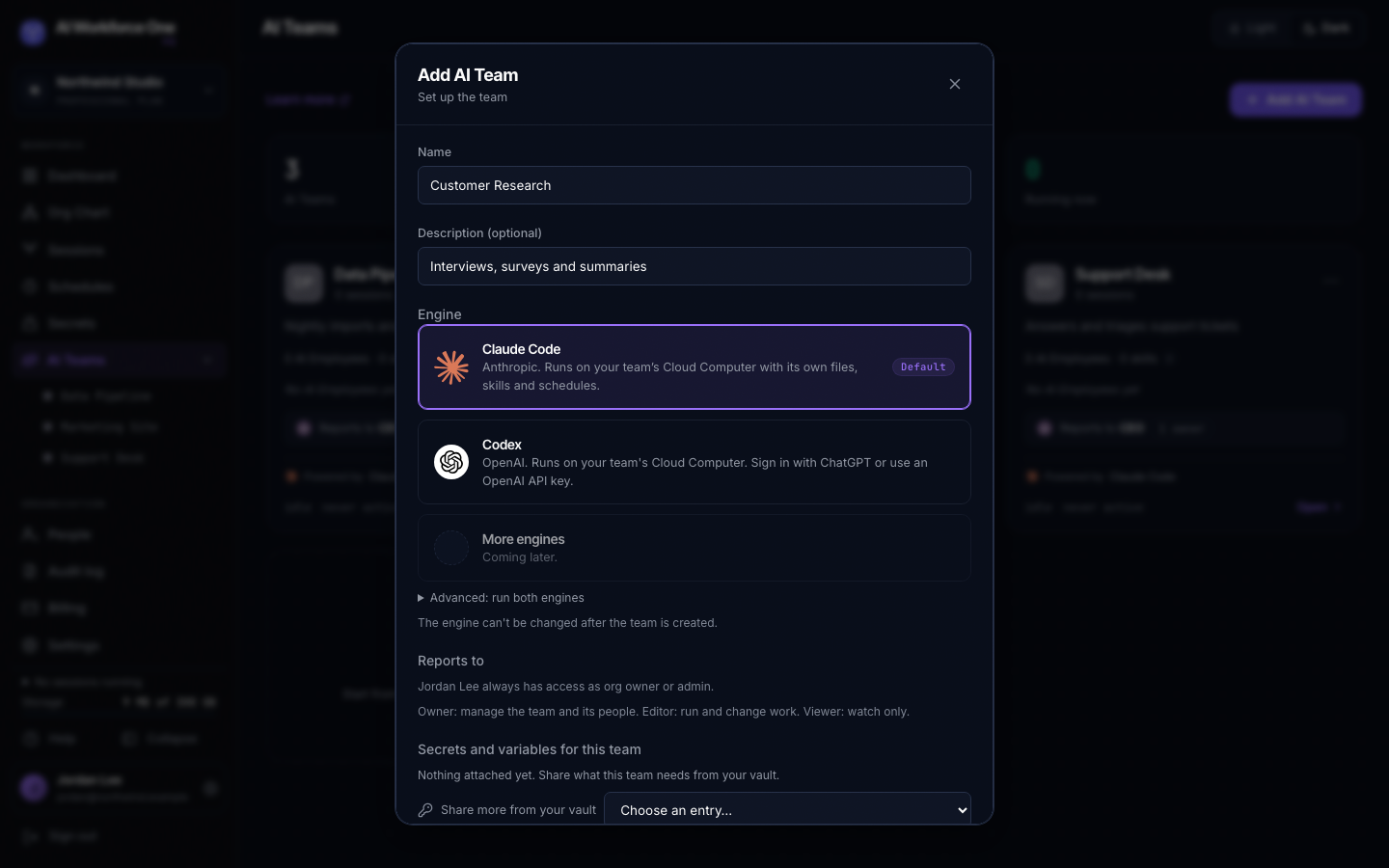
- Share secrets and variables, if it needs them
Under Secrets and variables for this team, attach what the team needs from your vault. Nothing is attached until you confirm it here. You can also do it later from the team's Secrets tab.
- Create it
Select Create AI Team, then Done. The team is ready to open.
Organization owners and admins create and delete AI Teams. A team owner runs the team: renames it, manages who has access, and updates or restarts its Cloud Computer.
Inside a team
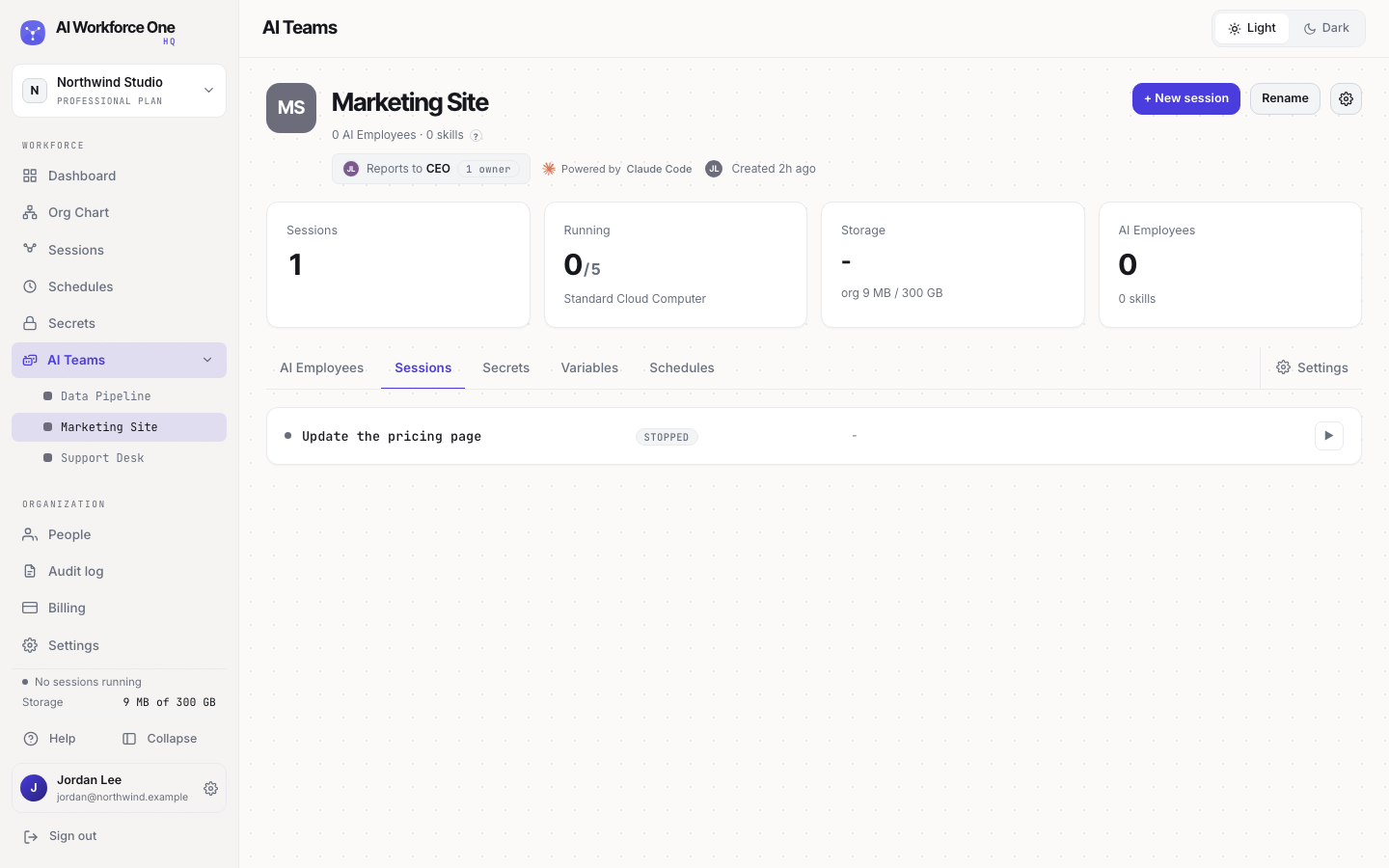
Open a team to see its sessions, how many run now, its Cloud Computer size, its storage and its AI Employees. The tabs list the team's AI Employees, Sessions, Secrets, Variables and Schedules. Select New session to start work, or Settings to change the team.
Delete a team
Open the team's Settings and select Delete AI Team at the bottom. Its sessions stop at once. Its files are kept for 30 days in case you change your mind (contact support to restore the team), then erased. A Boost you bought for the team is released.