
Two-factor authentication
Add a code from an authenticator app to your sign-in, and require it for everyone in your organization. Everyone sets up their own; owners require it.
Two-factor authentication (2FA) asks for a 6-digit code from an authenticator app, such as 1Password, Google Authenticator or Authy, each time you sign in. Someone who learns your password still can't sign in.
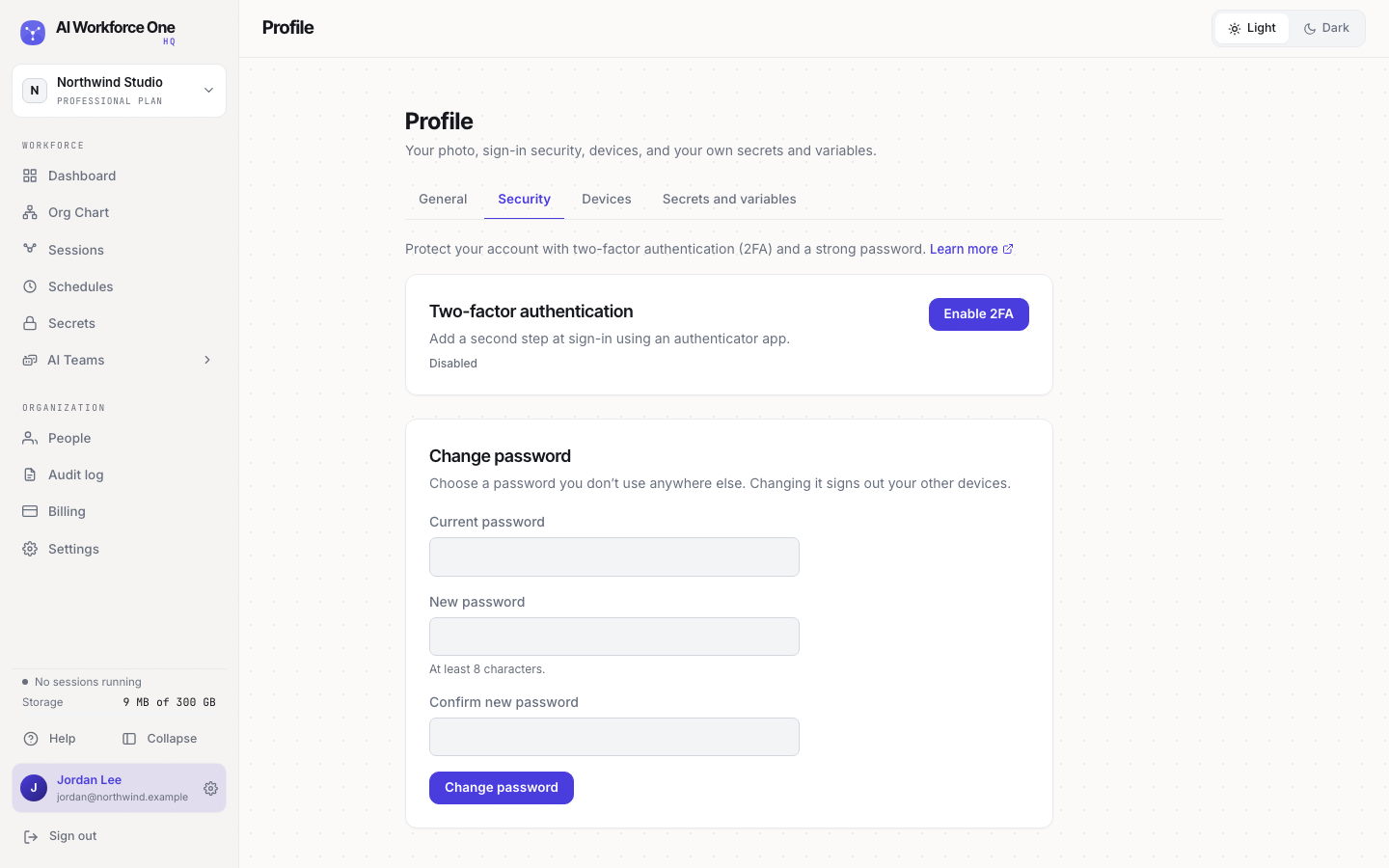
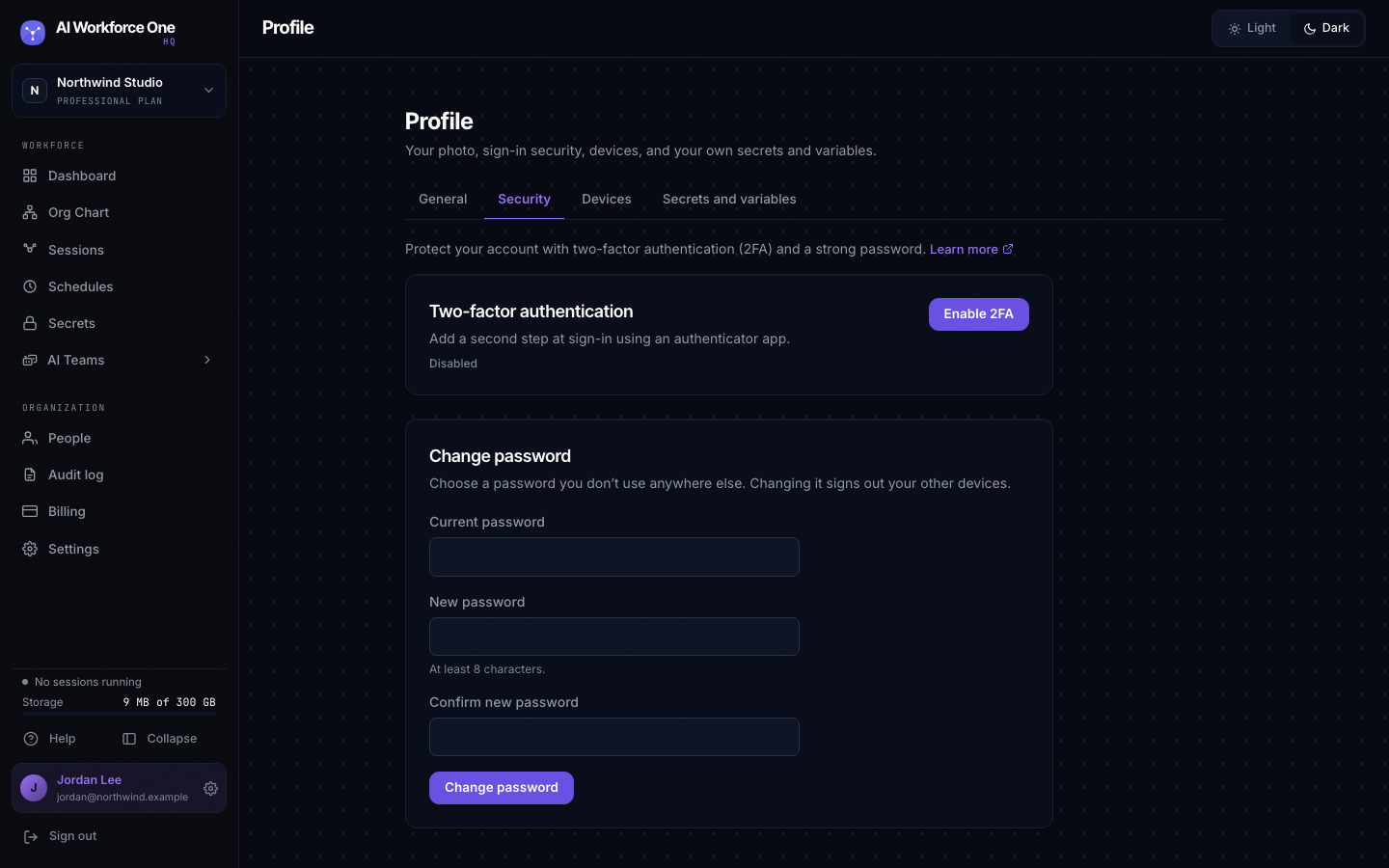
Turn on 2FA for yourself
- Open your profile
Select your name at the bottom of the sidebar, then the Security tab.
- Select Enable 2FA
Scan the QR code with your authenticator app, or type the key it shows.
- Confirm with a code
Enter the 6-digit code from the app.
- Save your recovery codes
Keep them somewhere safe, such as your password manager. Each one signs you in once if you lose your phone. You can create new ones from the same tab.
The Security tab is also where you change your password. Changing it signs you out on your
other devices. Devices lists the computers where you use the hq CLI or VS Code.
Require 2FA for your organization
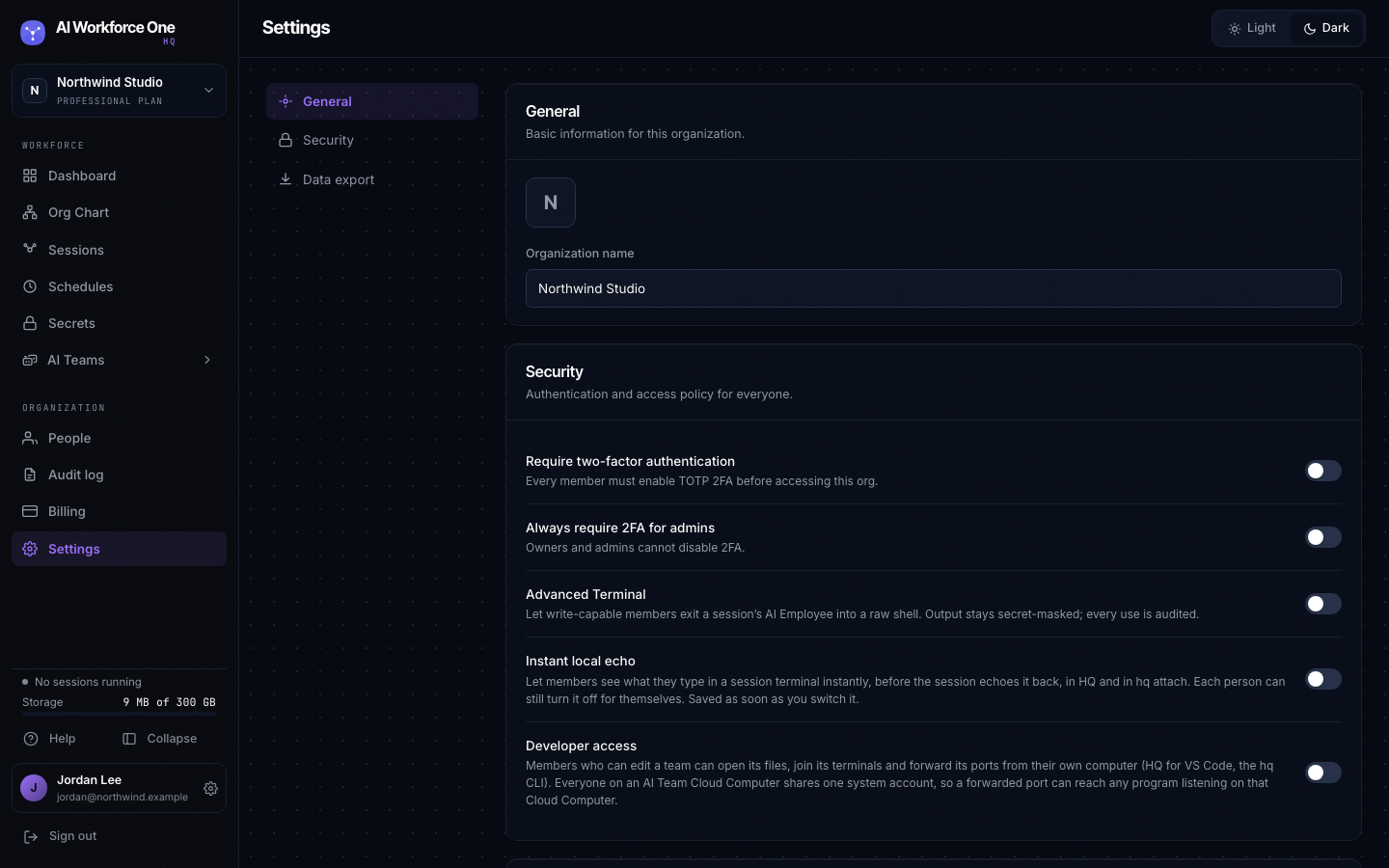
In Settings, then Security:
- Require two-factor authentication: every member must set up 2FA before they can use the organization. The same switch is at the top of People. New members get a setup page the first time they sign in.
- Always require 2FA for admins: owners and admins can't turn their 2FA off.
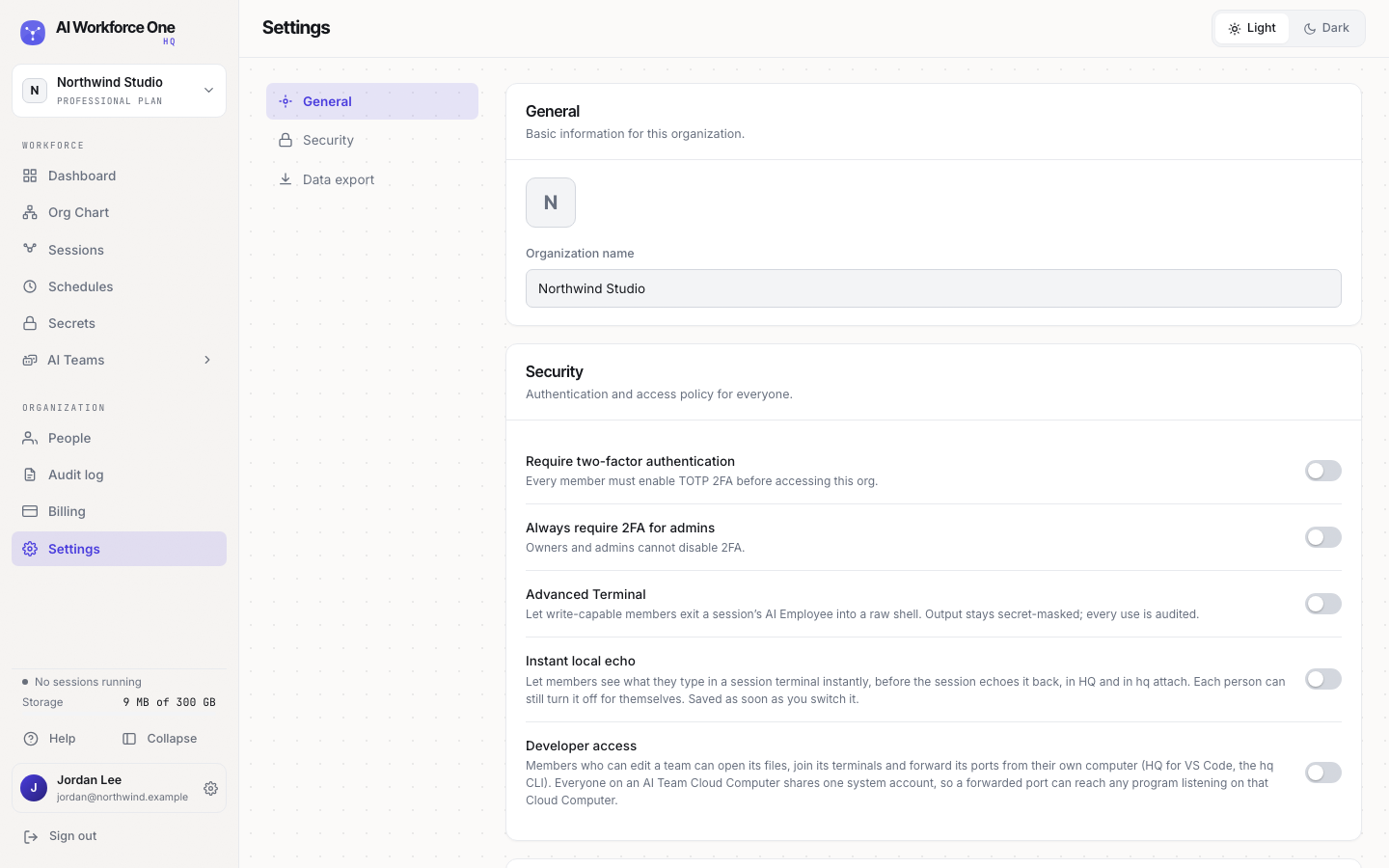
Everyone sets up their own 2FA. Only organization owners change the organization's security settings.