
People and access
Invite people to your organization, choose their role, and decide which AI Teams each person can see and change. Owners and admins manage people.
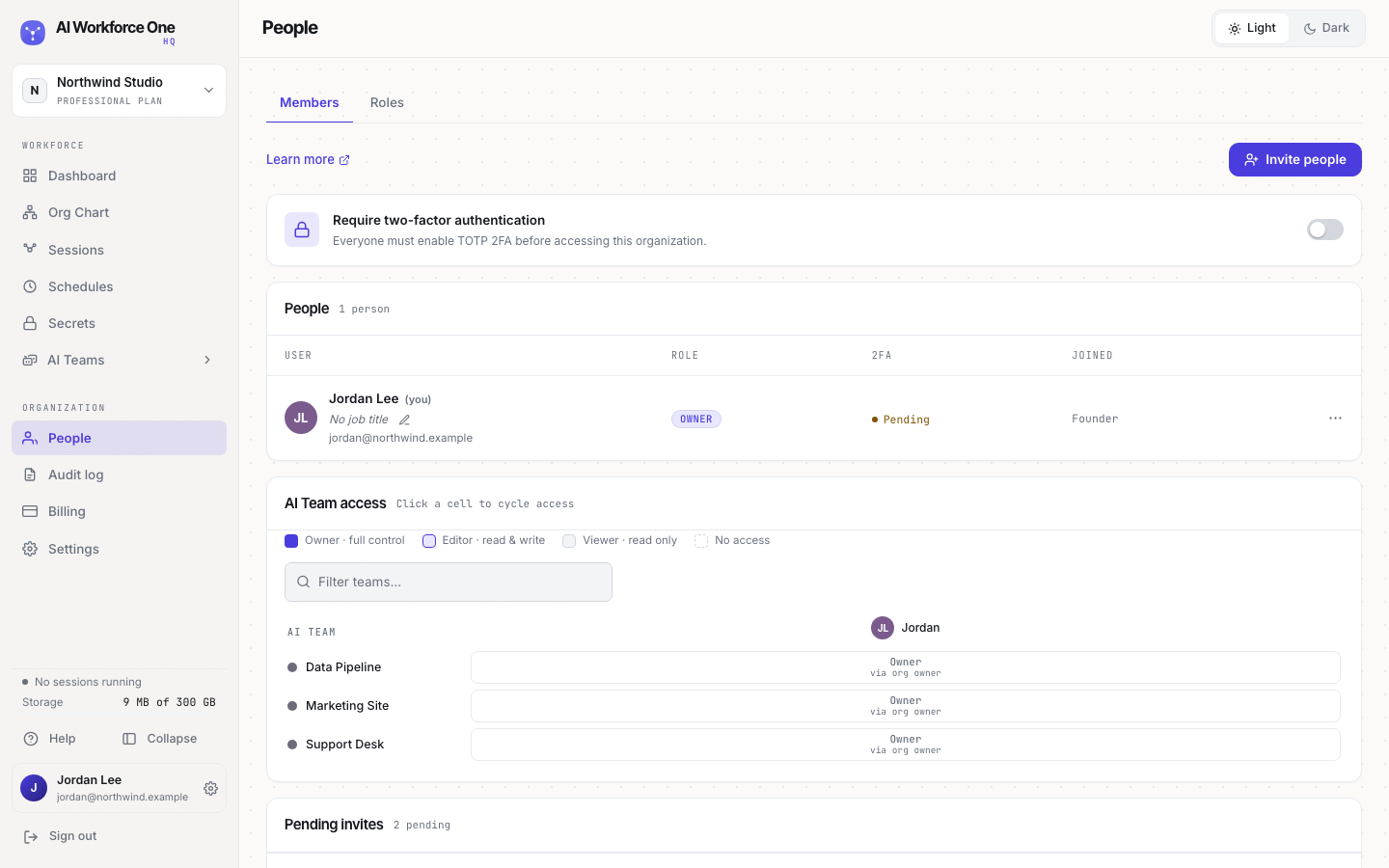
People has two tabs. Members lists everyone in your organization with their role, whether they have two-factor authentication, and when they joined. Roles lists the roles they can have: see Roles and permissions.
On Members, under the list, AI Team access shows what each person can do on each team, and Pending invites lists invitations not yet accepted.
Invite someone
- Open People
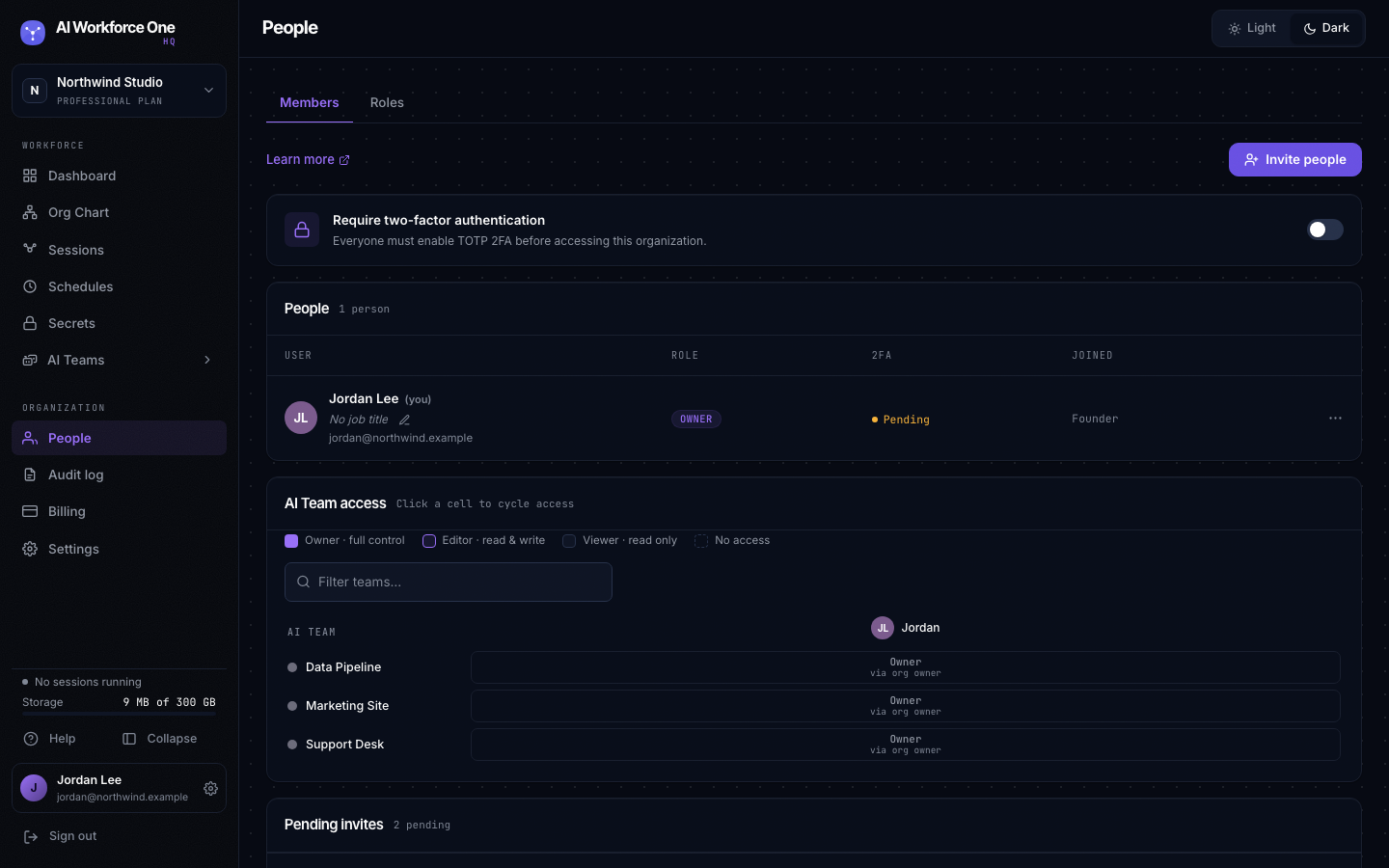
Select People in the sidebar, then Invite people.
- Enter their email and role
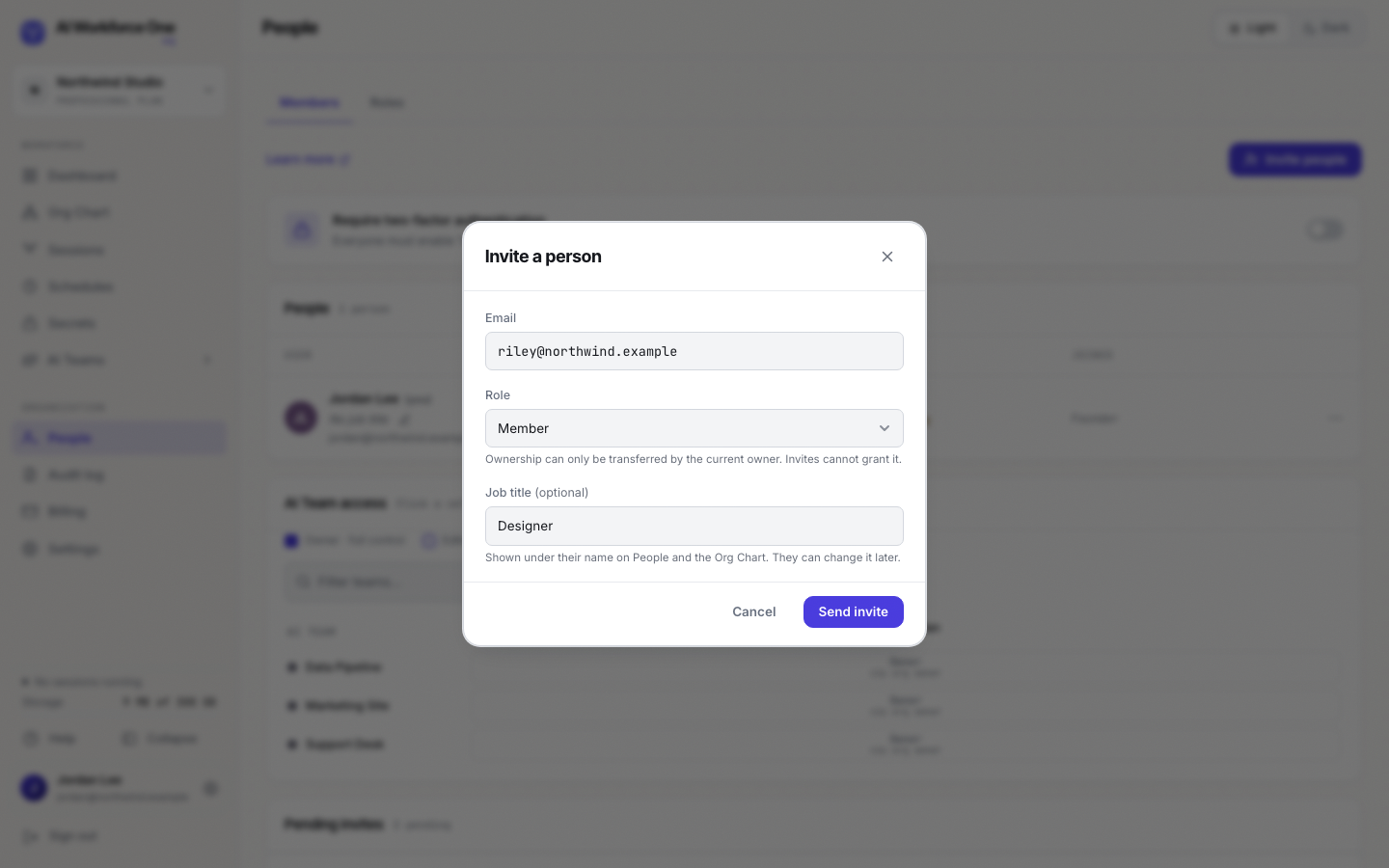
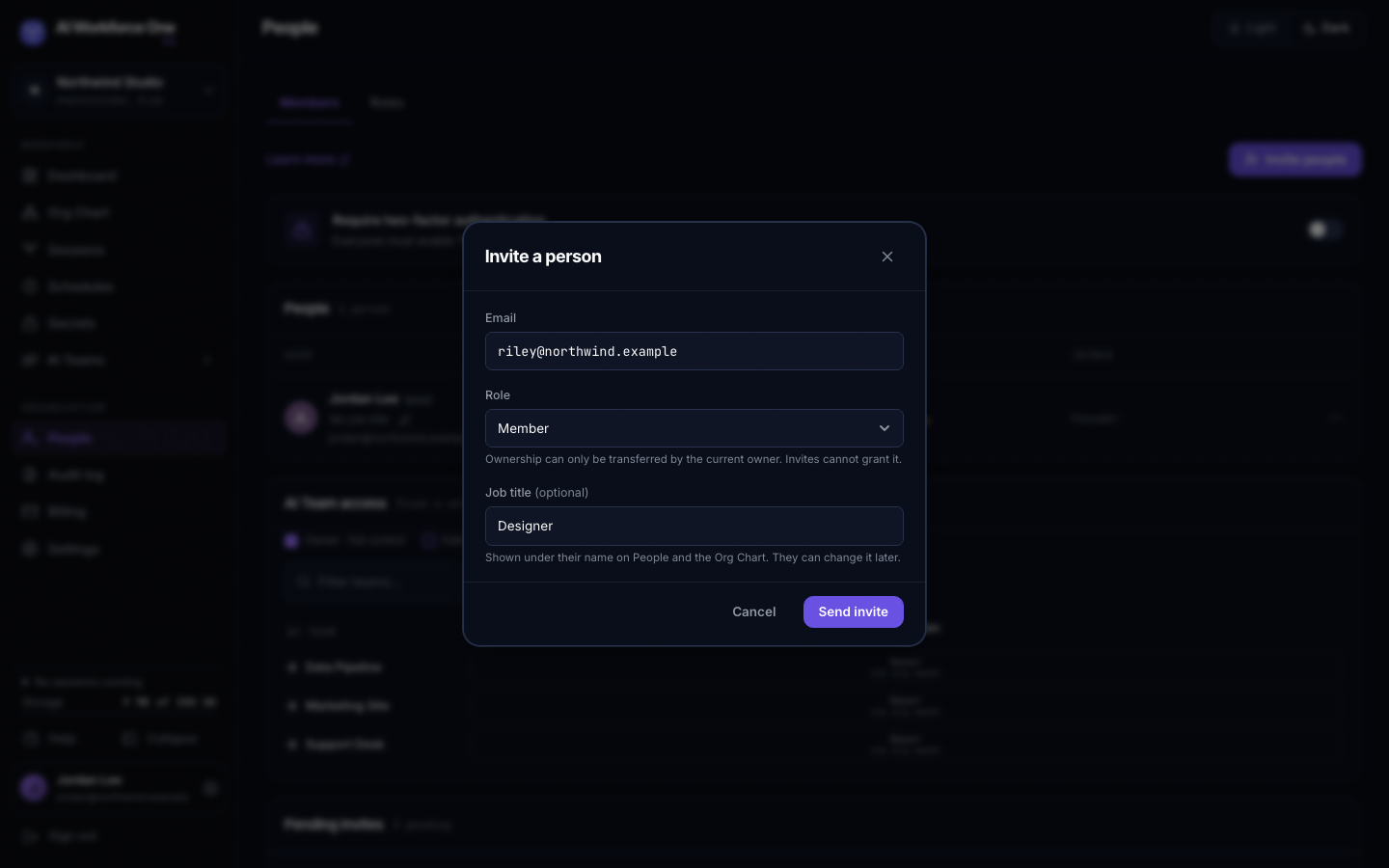
Choose Member or Admin. Add a job title if you like: it shows under their name on People and the Org Chart, and they can change it later.
- Send the invite
Select Send invite. They get an email with a link to join. Until they accept, the invite is under Pending invites, where you can Resend or Revoke it.
Ownership can't be given with an invite: only the current owner can make someone an owner.
Give access to AI Teams
A Member sees only the AI Teams they are added to. In AI Team access, select a cell to cycle that person's access to that team:
- Owner: full control of the team, its secrets and its access.
- Editor: read and write. Starts sessions, changes files and schedules.
- Viewer: read only. Watches sessions and reads files.
- No access.
Organization owners and admins are team owners on every team, shown as "via org owner".
Change a role or remove someone
Open the menu at the end of a person's row to change their organization role or remove them. Removing someone from an AI Team ends their access to that team's sessions at once.
Require two-factor authentication
Turn on Require two-factor authentication at the top of People, and everyone must set up an authenticator app before they can use the organization. See Two-factor authentication.
Owners and admins invite and remove people, and admins may invite other admins. Only owners change roles, remove other owners and require two-factor authentication.