
Sign in and switch organizations
Sign in to HQ, switch between the organizations you belong to, create another organization and sign out.
You sign in to HQ with your email and password. If you belong to more than one organization, you choose which one to work in, and you can switch at any time.
Sign in
- Open HQ
Go to hq.aiworkforceone.com. Sign in is selected.
- Enter your email and password
Select Continue. If you forgot your password, select Forgot? and we email you a link to set a new one.
- Enter your two-factor code, if asked
If you turned on two-factor authentication, or your organization requires it, enter the code from your authenticator app. See Two-factor authentication.
Switch organizations
Your organization's name and plan are at the top of the sidebar. Select it to see every organization you belong to, then select the one you want. HQ opens its dashboard.
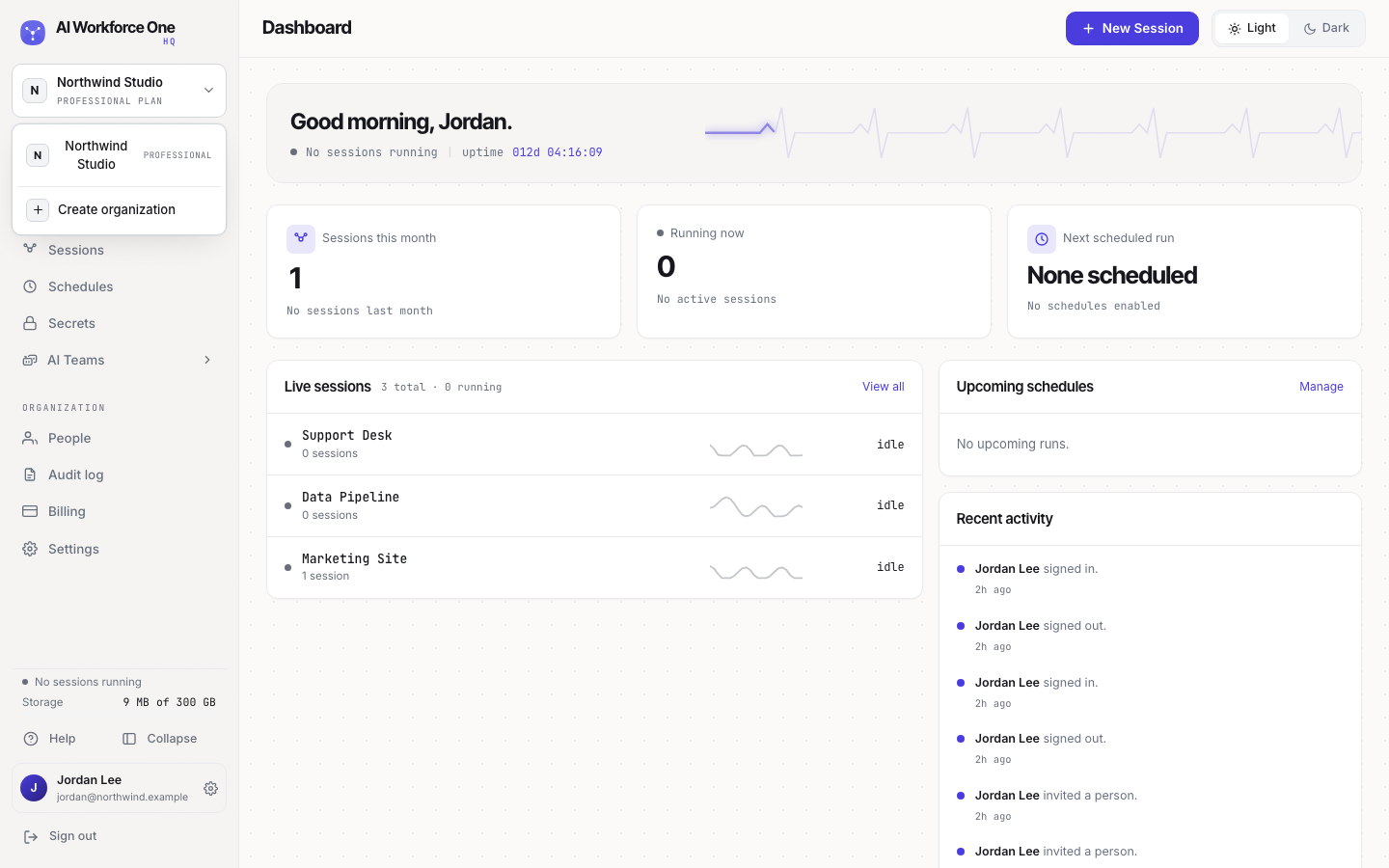
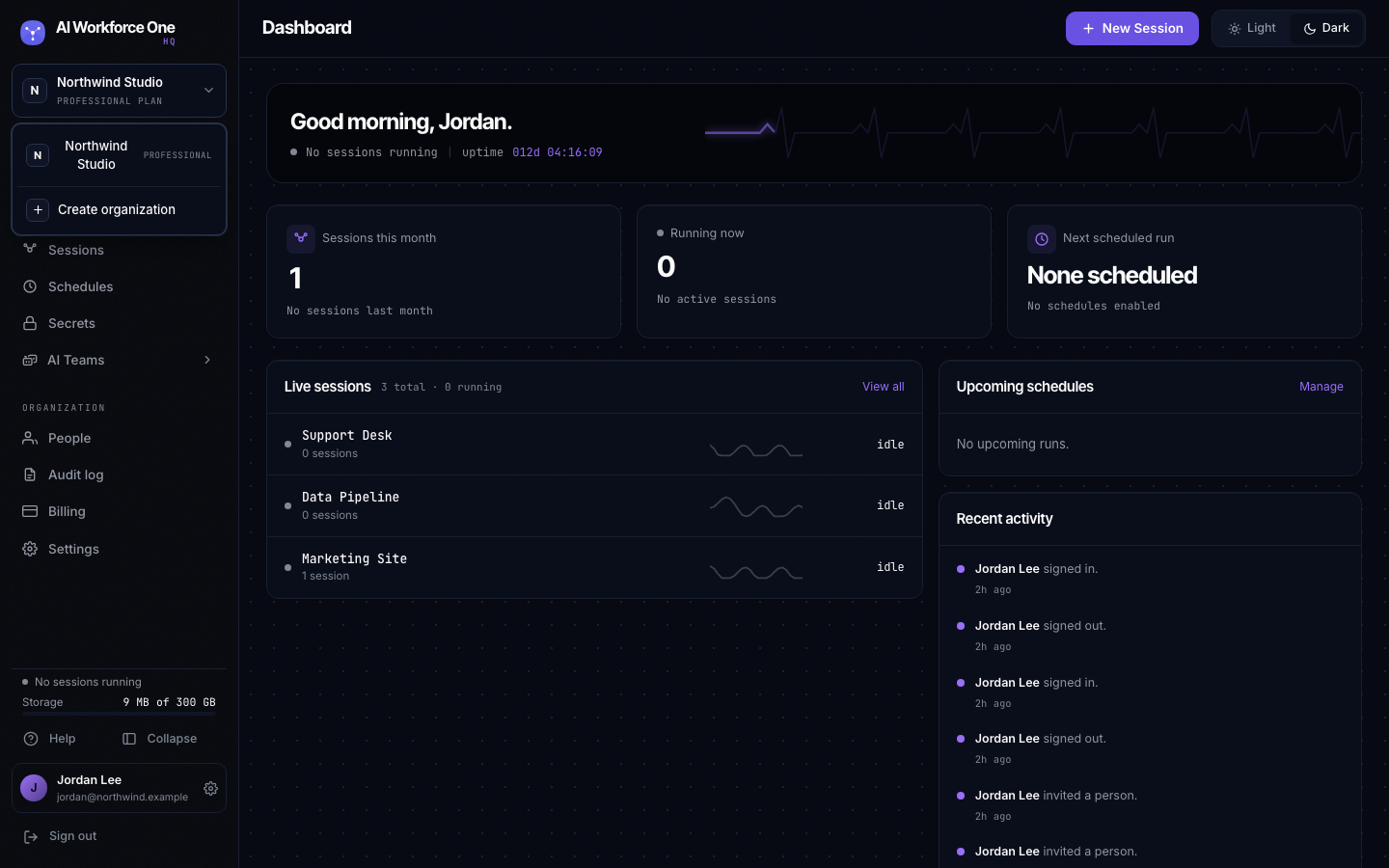
With more than 6 organizations, the menu has a search field.
Create another organization
Select the organization name at the top of the sidebar, then Create organization. You pick a plan and a name, the same way as for your first one. Each organization has its own plan, people and billing.
Sign out
Select Sign out at the bottom of the sidebar. HQ signs you out on this browser. Sessions keep running: signing out never stops your AI Employees.