
Browser View
Watch the web browser your AI Employee uses, take control when a page needs a person, answer a Needs you request, attach workspace files to a page and stay signed in to sites.
Your AI Employees can use a real web browser on the team's Cloud Computer, for example to test your site, fill in a form or read a dashboard. Browser View shows that browser live, next to the terminal. You can watch it, and when a page needs a person (a sign-in, a code, a CAPTCHA) you take control, do that step yourself and hand it back.
The browser works in Claude Code sessions. Codex sessions do not have it.
Turn on the browser for a team
- Open the team's settings
Open the AI Team and select Settings.
- Enable the browser
On the Browser for AI Employees card, select Enable browser. It takes a moment. Sessions started after this can use the browser. On a Standard Cloud Computer, the browser can slow the team down: consider a Boost.
- Add Needs you, if the card offers it
If you enabled the browser before Needs you existed, the card shows Add Needs you. Select it, then start a new session, so your AI Employee can ask you for help in the browser.
To remove it, select Turn off browser. The browser closes at once, also in running sessions, and its open pages are deleted. Your saved sign-ins are kept unless you tick Also delete saved sign-ins: they wait, unused, until the browser is enabled again.
Watch the browser
When your AI Employee opens a page, a Browser button appears at the top of the session and the view opens beside the terminal on its own. Your typing stays in the terminal. If you close the view, it stays closed until the browser starts again: select Browser to open it.
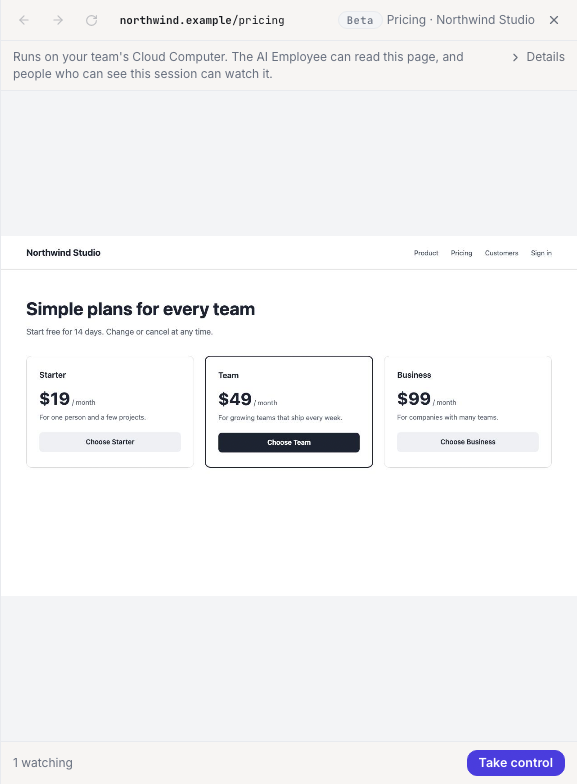
- The bar at the top shows the page's address, with the site's name in bold, and its title. The
address comes from HQ, not from the page, so a page cannot fake it. An address that starts with
http://is not a secure connection. - One line under it says where the browser runs and who can see it. Select Details for more.
- Everyone who can open the session sees the same browser, and the view says how many people are watching.
- The view pauses after 30 minutes without activity from you or your AI Employee. It comes back by itself as soon as your AI Employee uses the browser again, or select Resume.
Take control and hand back
- Select Take control
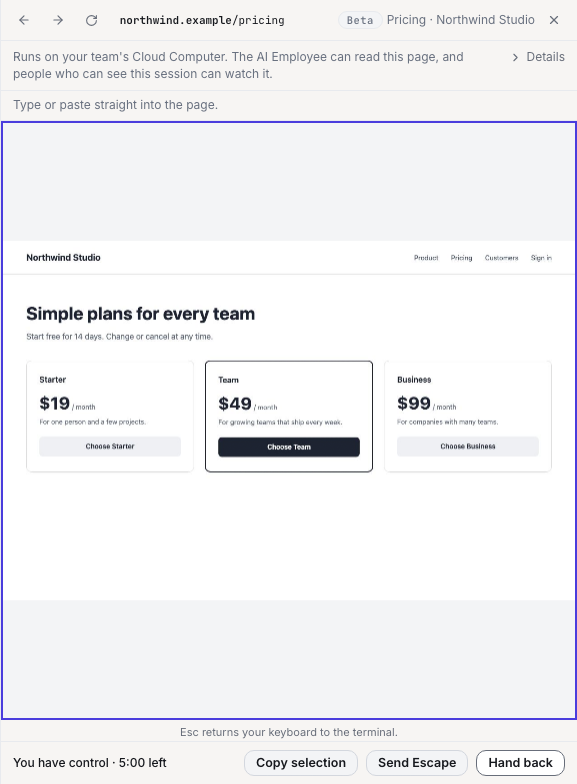
Take control is under the view. While you have control, the view has a coloured outline and your clicks, typing and scrolling go to the page. The bar under the view shows the time you have left, for example You have control · 4:52 left.
- Do what the page needs
Type or paste straight into the page (Ctrl+V, or Cmd+V on a Mac). Your AI Employee waits while you have control: it cannot click or type in the page.
- Select Hand back
Select Hand back when you are done. Your AI Employee carries on from where you left the page. Closing the view while you have control hands back too.
Good to know:
- Escape returns your keyboard to the terminal. To send Escape to the page itself, select Send Escape.
- Back, Forward and Reload work while you have control. To go to another page, select
the address, type a web address (for example
example.com) and press Enter. HQ does not reload a page that came from a form you sent, such as an order or a payment, because that would send the form again. It tells you instead. - Copy selection copies the text you selected on the page to your own clipboard.
- The page's own messages and dropdown lists open as cards over the view. Answer them there.
- Type dates with the keyboard. Site popups work. Passkeys, security keys and the browser's own sign-in box do not: choose Use a password or Try another way on the site.
- Control returns to your AI Employee on its own after 5 minutes without activity (HQ warns you first), or after 30 minutes in total.
- If you have control in another tab, the view says You have control in another tab. Select Take control here to move it.
- One person has control at a time. While someone else has it, the view says who.
Passwords and codes
Type a password or a code into the page only while you have control, and check the address at the top of the view first. Everyone watching sees the page while you type, with password fields shown as dots.
If you hand back while a password field still has text in it, HQ stops you, because your AI Employee would be able to read it. Choose Clear it and hand back, or Keep control.
Your AI Employee can read everything you send it. Sign in in the browser, while you have control.
Sites that refuse the browser
Some sites refuse a sign-in from a browser that runs on a cloud server rather than on your own computer. Google, for example, can answer Couldn't sign you in. This browser or app may not be secure. Your AI Employee's browser tells sites it is a standard Chrome on Linux, but it still runs in a data center, and a site may decide not to trust it. HQ cannot change that decision.
If a site refuses you:
- Sign in with the site's own email and password, if it offers that next to Sign in with Google.
- Use what the site provides for tools and automation, such as an app password, an access token or an API key. Create it on your own computer and keep it in the team's secrets, never in the chat.
When your AI Employee needs you
When your AI Employee reaches a step only a person should do, such as a sign-in, a verification code, a CAPTCHA, a payment or a confirmation, it asks for you and waits. The top of the session says, for example, Your AI Employee needs you: sign-in. If the HQ tab is in the background, you can get a notification: select Notify me when it needs me once.


- Select Open the browser
The view opens with Take control ready for you. HQ never takes control for you. The view also shows what your AI Employee said it needs and the site it is on. If the page changed since it asked, the view says so: check the address before you type anything.
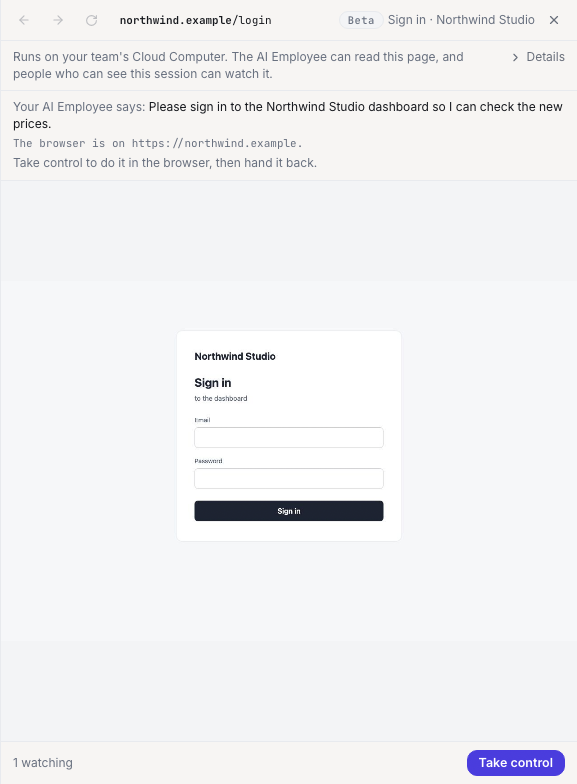
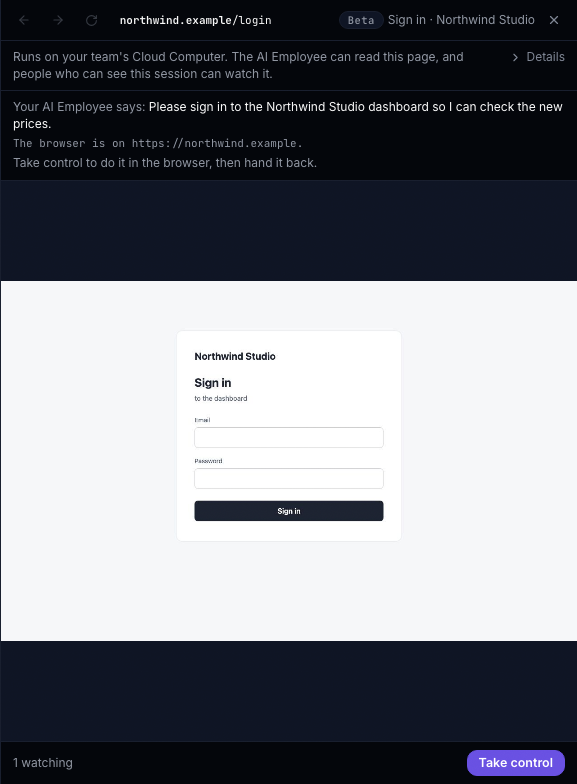
- Take control and do the step
Sign in, enter the code, solve the CAPTCHA or confirm, right in the page.
- Hand back
Select Hand back. Your AI Employee is told and carries on.
Select Dismiss if you will not do it. Your AI Employee is told and carries on without it. A request waits for 30 minutes; after that your AI Employee is told nobody answered. While it waits, the Cloud Computer stays awake, for at most those 30 minutes.
Choose a file from the workspace
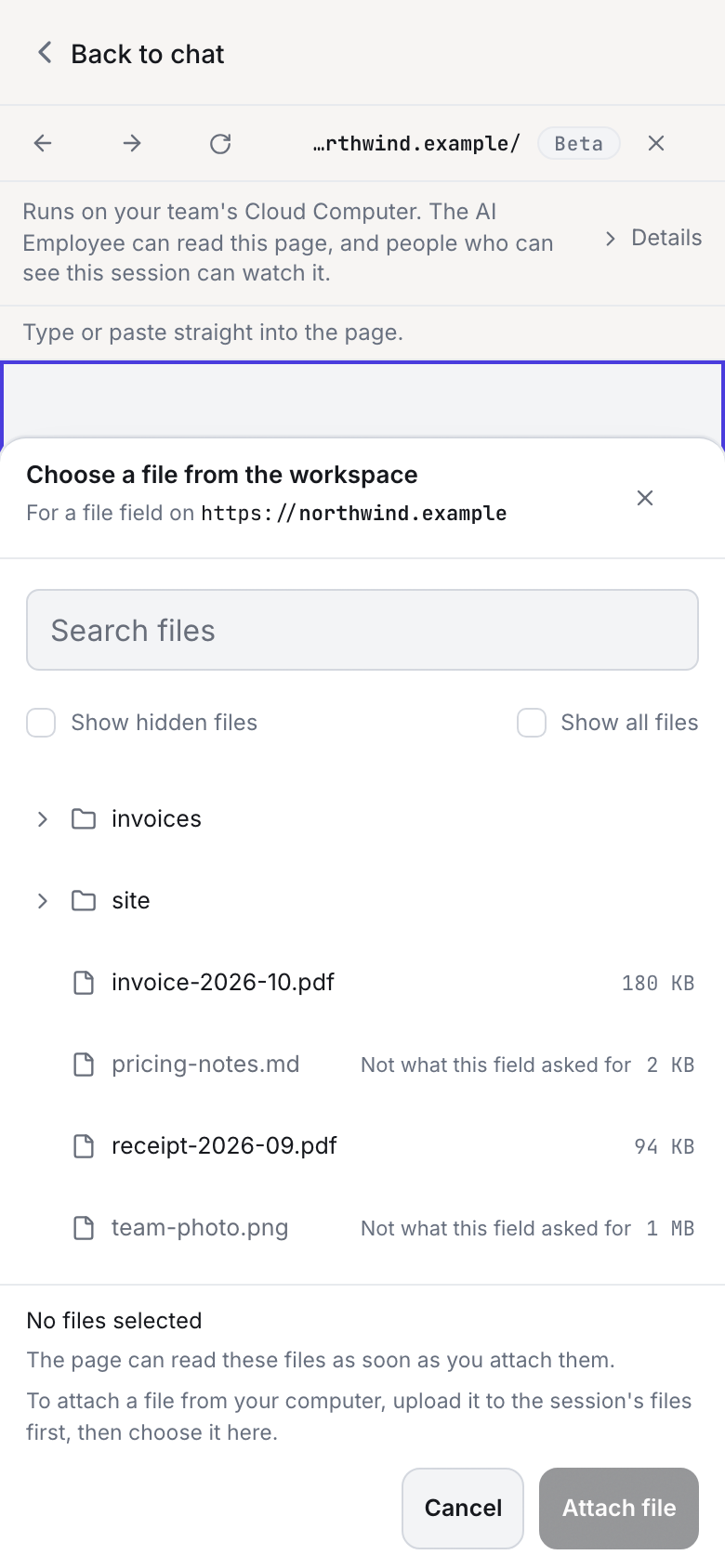
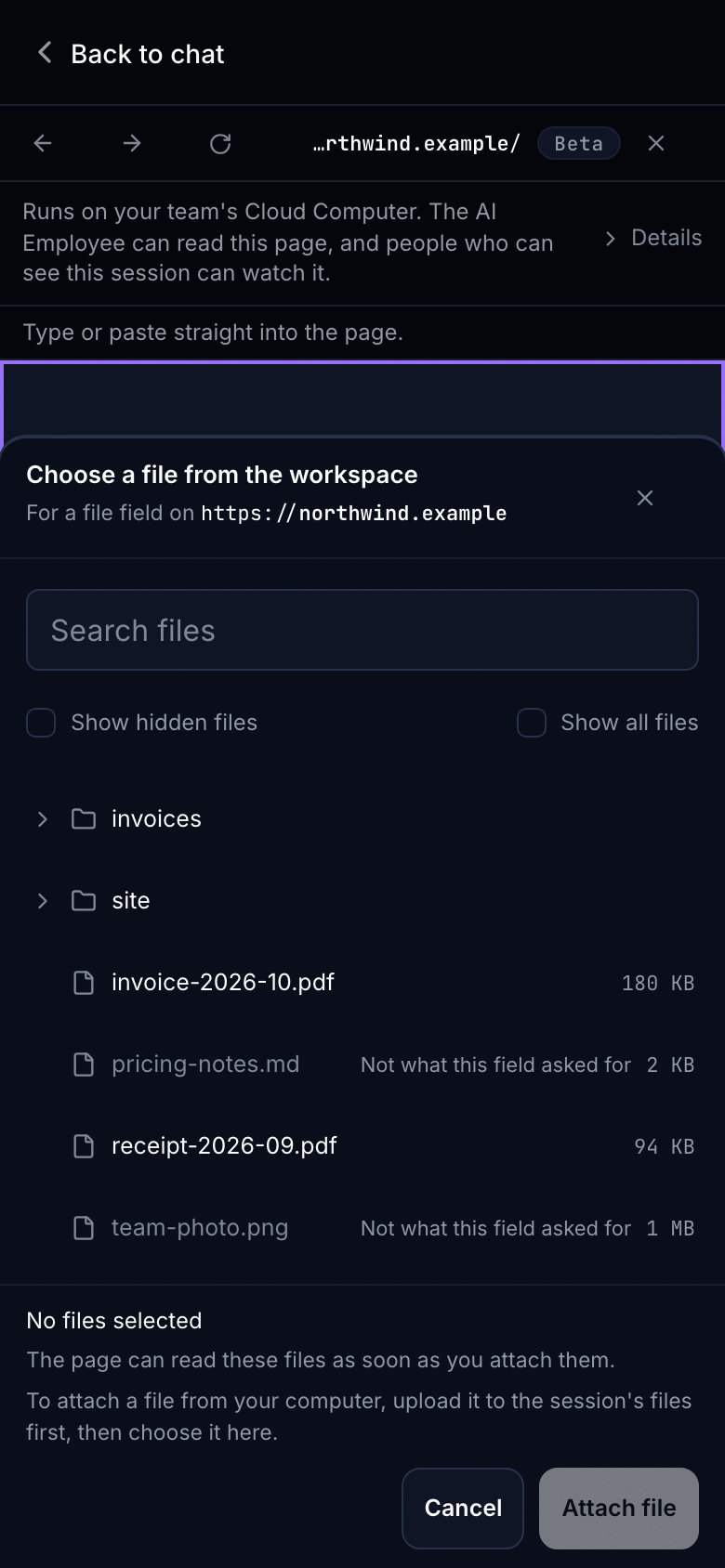
Some pages ask for a file: an invoice upload, an identity check, a support form. While you have control, selecting the page's upload button opens Choose a file from the workspace, or Choose files from the workspace when the page takes several. It lists the files of this session's workspace on the Cloud Computer.
- Check where the files are going
The line under the title names the site that asked, for example For a file field on example.com. It comes from HQ, not from the page. Not secure beside it means the site does not use a secure connection.
- Choose the files
Open folders, or type in Search files to find a file anywhere in the workspace. The bottom of the card lists what you chose and its total size.
- Attach
Select Attach file (or Attach 2 files, and so on). The page receives the files as if you had picked them on your own computer, and HQ says Attached 1 file to the page.
What to know before you attach:
- The page can read the files as soon as you attach them. Only choose files you mean to send to that site.
- Files from your own computer: upload them to the session's files first, then choose them here.
- Limits: up to 64 MB a file, 128 MB together, and 20 files at a time.
- What the page asked for: if the page only takes some kinds of files, such as PDFs or images, the others are greyed out. Tick Show all files to choose one anyway; the page may still refuse it.
- Hidden files: files whose names start with a dot show only after you tick Show hidden files.
- Never offered: settings and secret files, such as
.envfiles,.git,.ssh, cloud credentials and private keys, are never listed. A file that turns out to hold a key or a sign-in token under another name is refused when you attach it. - Folders: a field that asks for a whole folder does not work here. Upload the files to the session's files, then ask your AI Employee to attach them.
- If the page moves to another site, or the file changes, before the files are attached, nothing is attached and HQ says why. Select the page's upload button again.
On a keyboard, the arrow keys move through the list, Space chooses a file, Enter attaches and Escape closes the card.
Stay signed in to sites
When you sign in to a site in your AI Employee's browser, HQ can keep that sign-in, so the next session, a Restart or a Cloud Computer update does not sign you out.
- What is kept: only what keeps you signed in to a site you opened: its cookies and the data it stores for the sign-in. Never your passwords, your browsing history or form entries.
- Encrypted, per person and per team: your sign-ins are yours. They are stored encrypted, listed only to you, and kept apart for each team you are on.
- Who can use them: your AI Employee, in any of your sessions on this team, including scheduled runs and background tasks, and code it runs. People who can watch your sessions see the pages you are signed in to.
- Team API key sessions never save sign-ins.
- A site you have not used for 90 days is forgotten.
Turn saved sign-ins on or off
On most teams saved sign-ins are on for you. The first time you open the browser, a note explains them: select Got it, or Do not save on this team.
If your team shares one Cloud Computer between its members, the team's Settings say so under Your browser sign-ins, with a warning: while your browser is open, other members of the team and anything they run there can use the sites you are signed in to. Read it, and select Turn on saved sign-ins only if that is fine for you. Each person decides for themselves.
To stop, select Turn off saved sign-ins for this team. Your saved sign-ins for that team are cleared.
Sign out of a site, or clear everything
In the team's Settings, Your browser sign-ins lists the sites you are signed in to and when each was last used: the last time a page of that site opened in your AI Employee's browser, or a sign-in to it was saved. Starting a session does not count, so a site nobody opens is still forgotten after 90 days.
- Select Sign out next to a site to make your AI Employee's browser forget it. To end the session at the site itself, sign out there too.
- Select Clear everything to forget every site on this team. This cannot be undone.
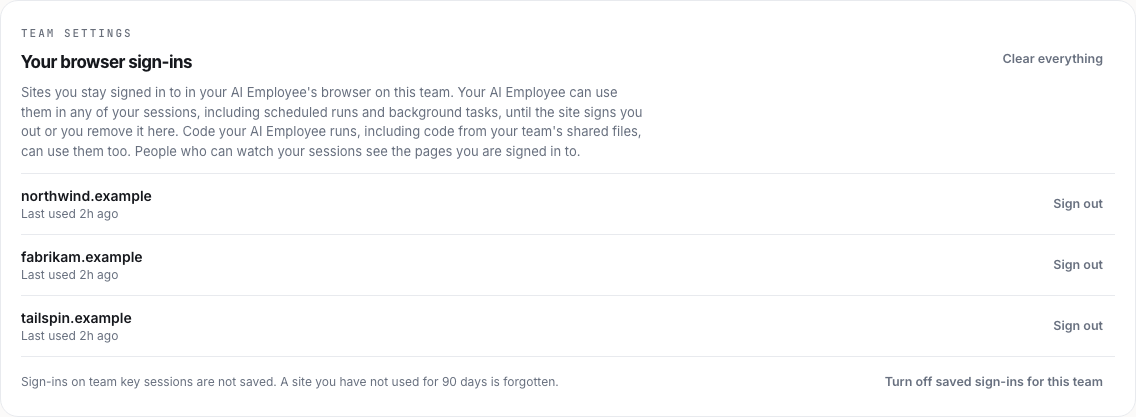
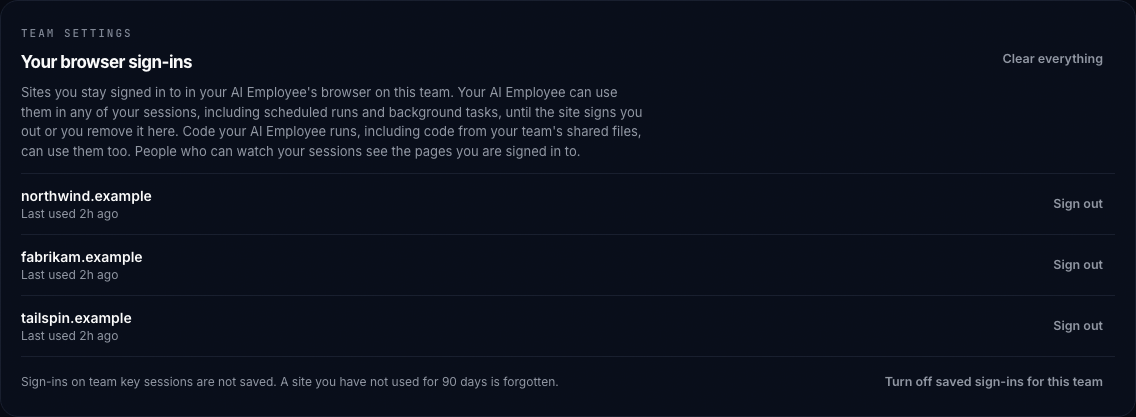
After you change your HQ password or two-factor authentication, the Security tab of your profile offers Also sign your AI Employee's browser out of every site.
Who can do what
| What | Who |
|---|---|
| Watch the browser | Anyone who can open the session |
| Take control, answer Needs you | On a session that runs on someone's own Claude login: only that person, the session owner. On a session that runs on the team API key: editors and team owners |
| Turn the browser on or off | Team owners, for the whole team, including scheduled runs and team API key sessions. When people use their own Claude login, editors can turn it on or off for their own sessions |
| See and remove saved sign-ins | Only the person who saved them |
Only the session owner can take control of a session on their own Claude login; on a team API key session, editors and team owners can. Anyone who can open a session can watch its browser. Each person manages only their own saved sign-ins.
On a phone or tablet
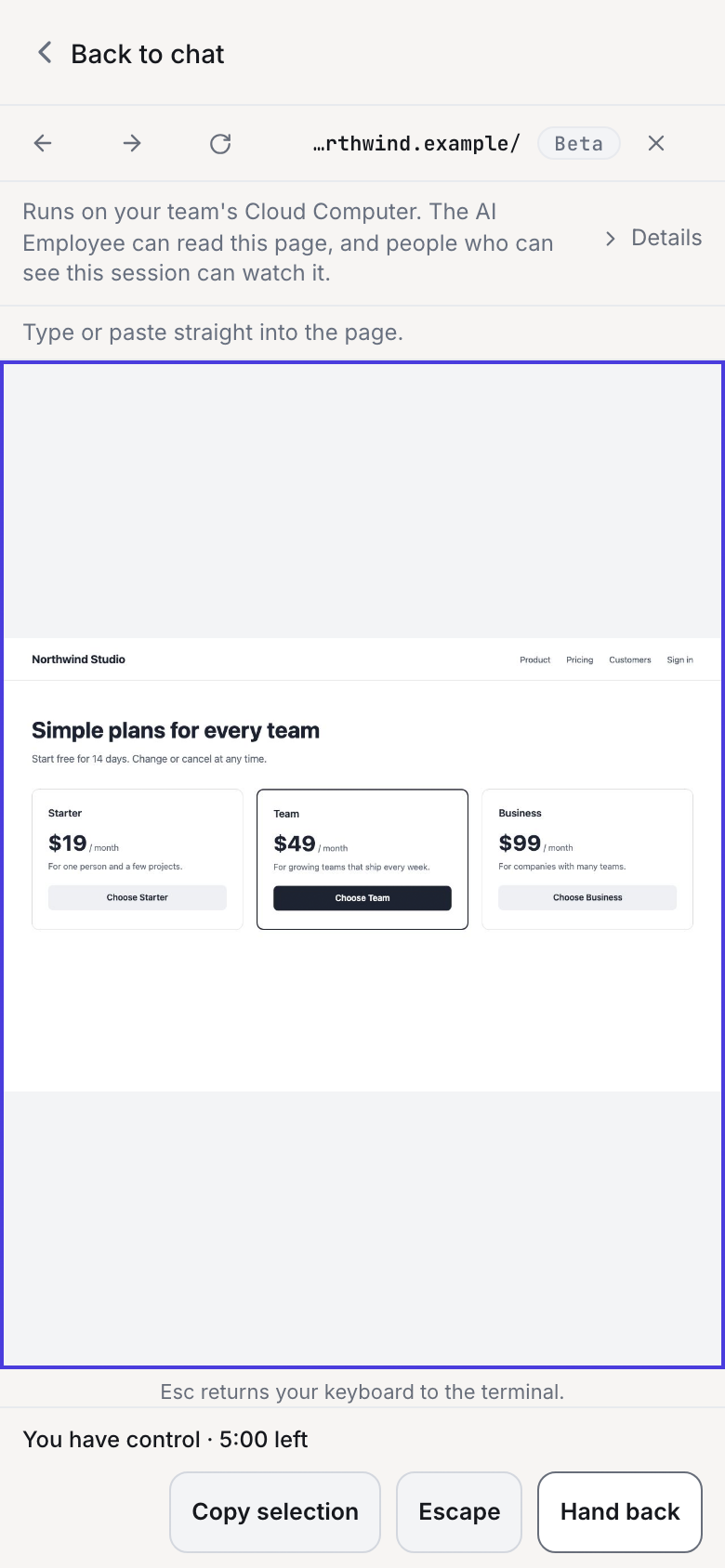
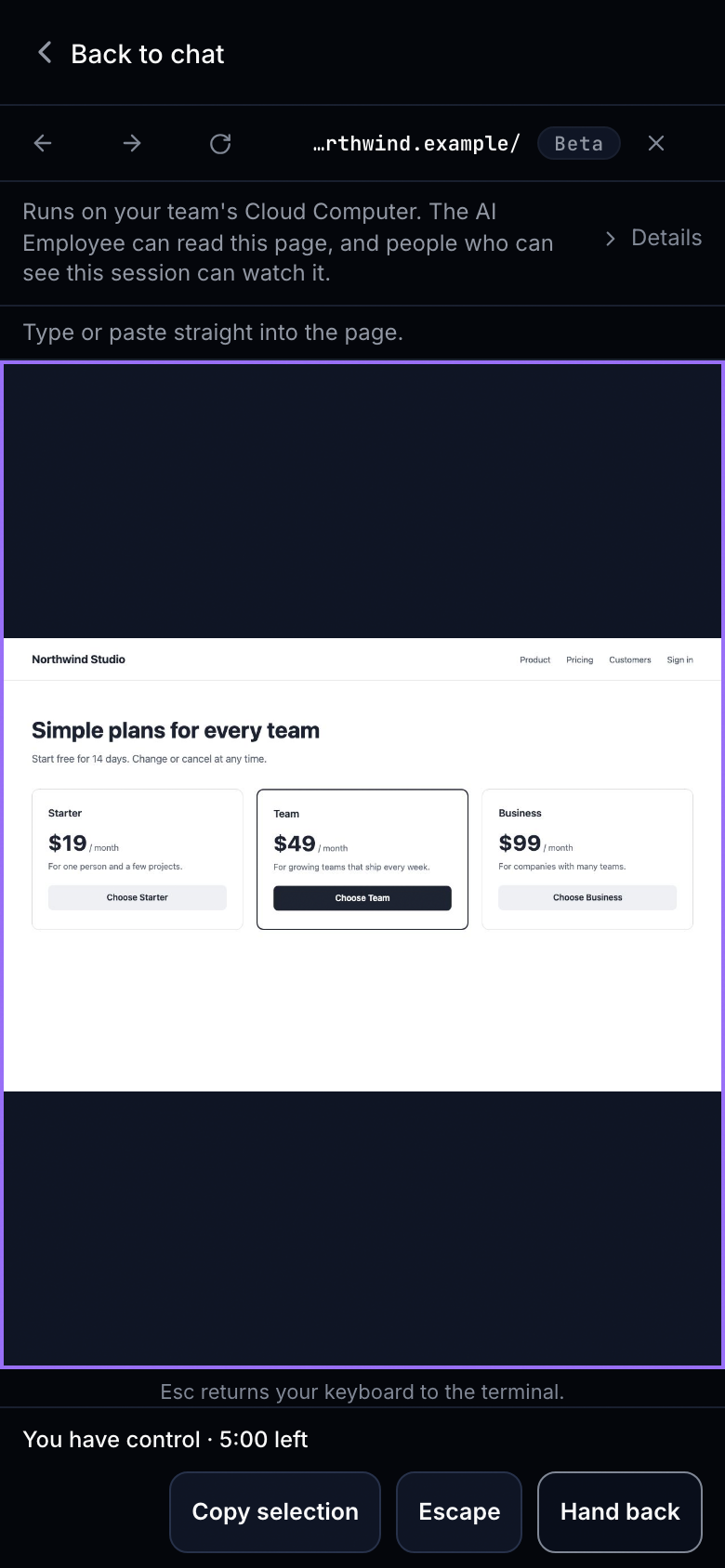
- On a phone, the view does not open on its own, so it never covers the terminal. Select Browser at the top of the session. It opens over the whole screen.
- Take control, Hand back and the time left sit at the bottom of the screen, within reach of your thumb.
- While you have control, tap to click, drag one finger to scroll and press and hold to right click. Tap the page to bring up your keyboard. Pinch to zoom does not work in the view.
- Needs you works the same way: select Open the browser at the top of the session.
Ask your AI Employee to use the browser
When the browser is on for the team, each new session tells your AI Employee that it has a real browser and that you can watch it in Browser View. It is told to say what it is doing as it goes, to ask you to do the steps only a person should do (with Needs you where your team has it), and never to ask for a password or a code in the chat. A session that was already running keeps what it was told when its conversation began: to give it this, start a new session.
Say what you want done and where, and tell it to ask you for the steps only you can do:
Open our staging site at staging.example.com, sign in as the test user and check that the
checkout page shows the new prices. If the site asks for a password, a code or a CAPTCHA, ask
me with Needs you and wait. Do not ask me for the password in the chat.
A shorter request works too, for example:
Open our pricing page in the browser, check that every plan's button works and tell me what you
see. I'll watch in Browser View.