
Start and stop sessions
A session is one conversation with an AI Employee on an AI Team's Cloud Computer. Editors and team owners start them; a session runs until someone stops it.
A session keeps running when you close the tab or your laptop. You can come back to it from any
browser, from the hq CLI or from VS Code.
Start a new session
- Select New Session
Use New Session at the top of the dashboard, or New session on an AI Team's page.
- Choose the team, a name and a permission mode
The permission mode decides how much Claude does on its own:
- Ask me first. Claude checks with you before it runs a command or changes a file.
- Auto-edit. Claude writes and edits files on its own, but asks before it runs commands or anything destructive.
- Autopilot. Claude works on its own and runs everything without asking. Use it for unattended and scheduled work you trust it to finish.
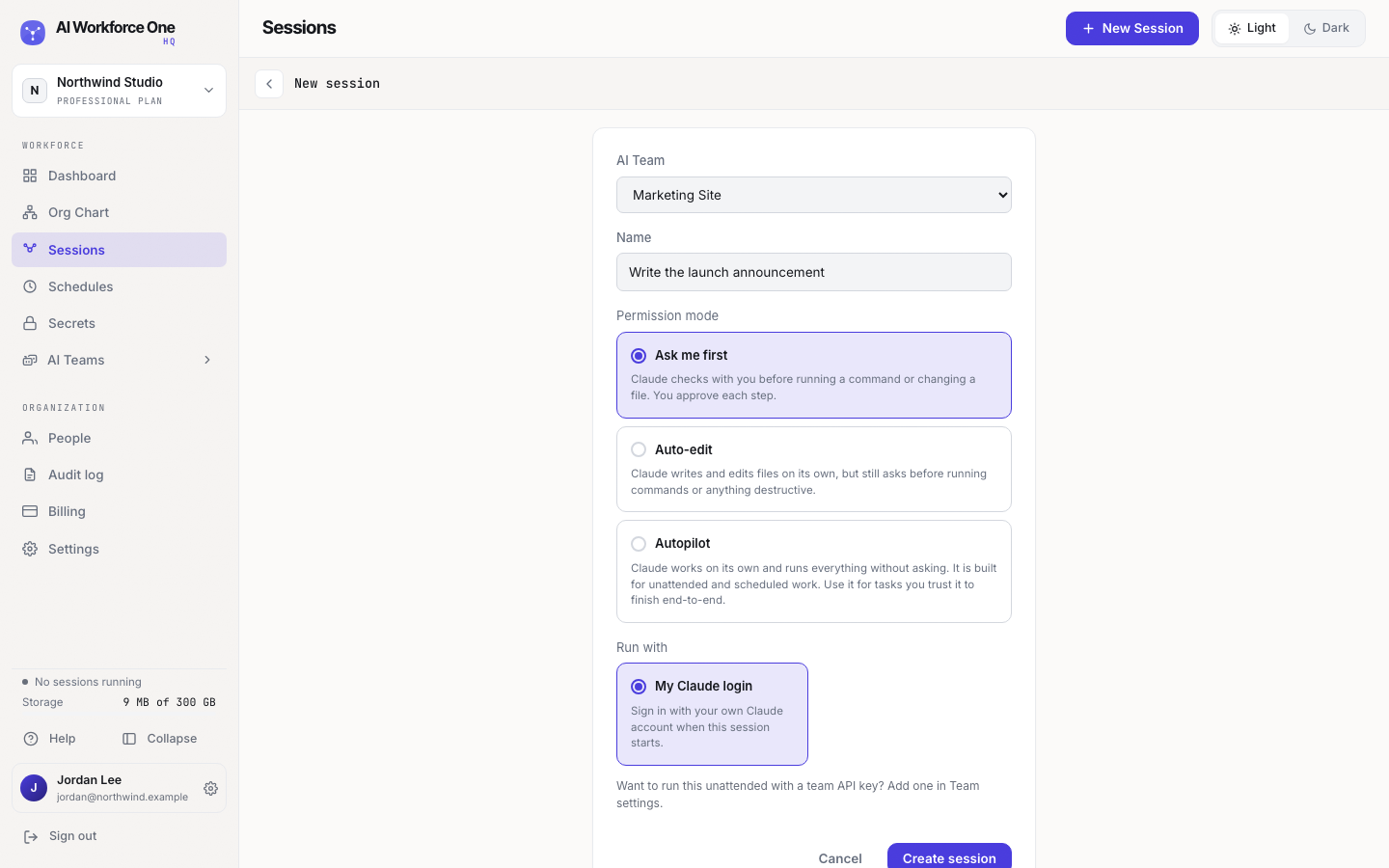
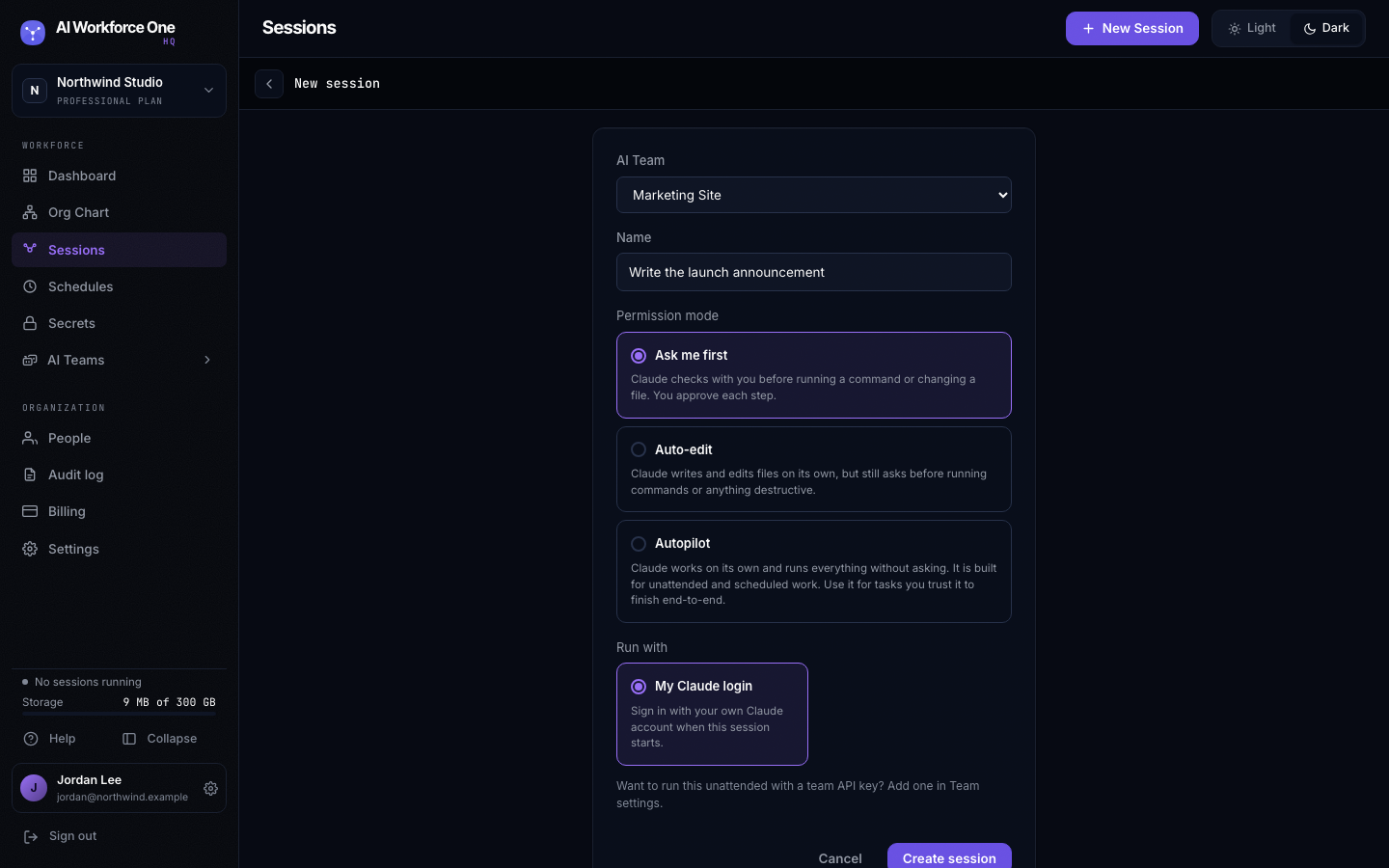
- Choose what it runs with
My Claude login signs in with your own Claude account. If the team has a team API key, you can choose it instead. Select Create session.
- Start it
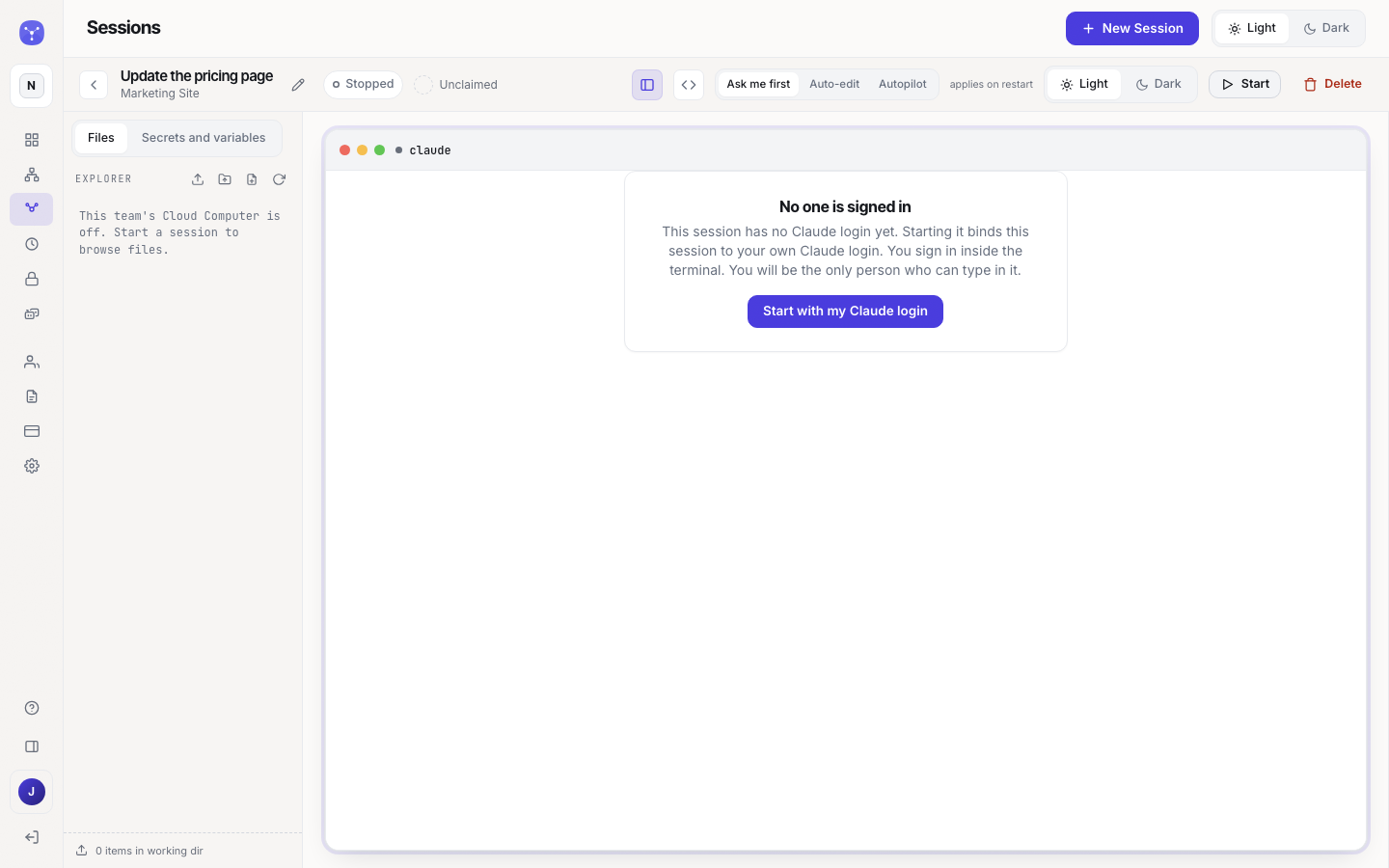
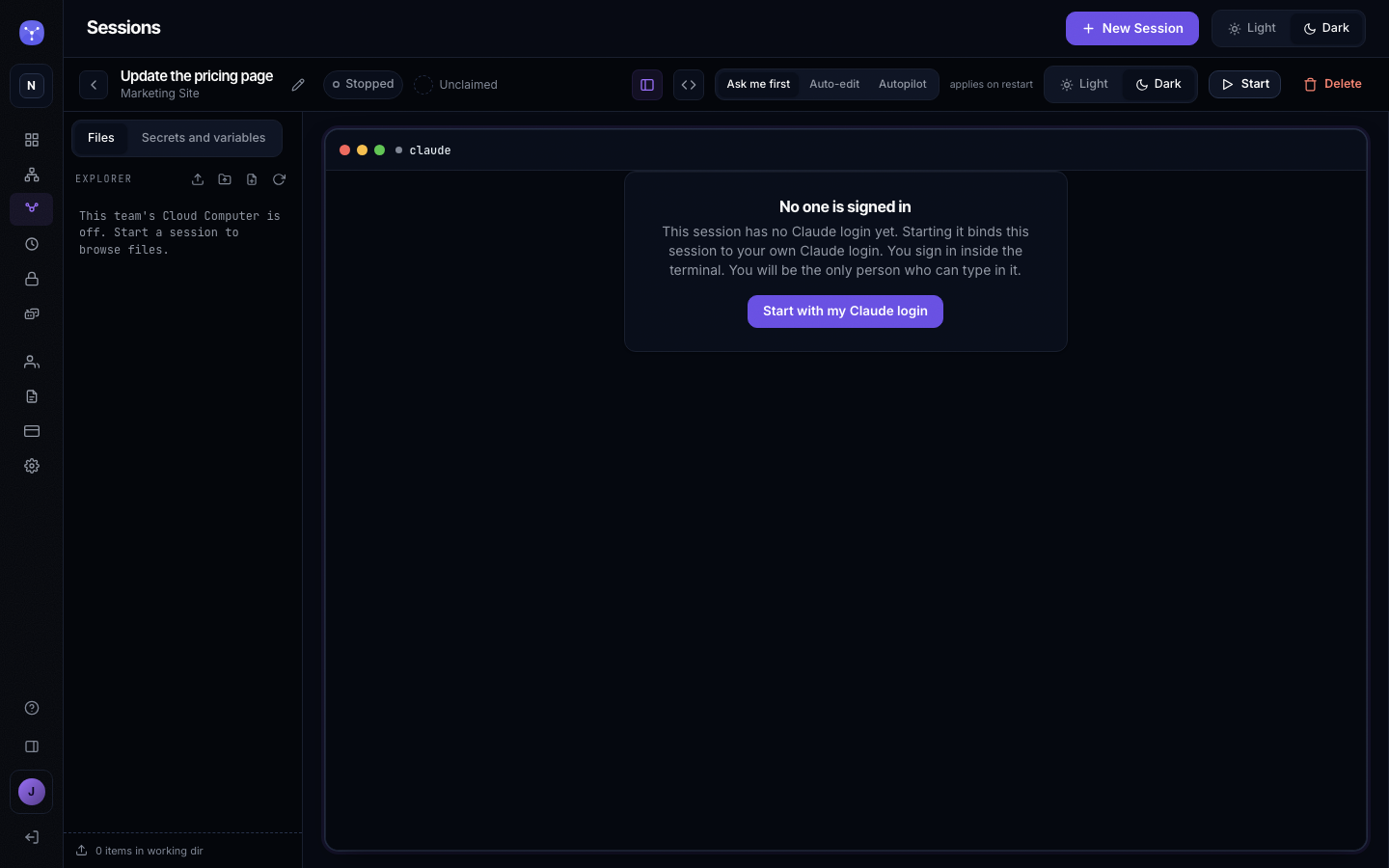
A new session waits, stopped, until you start it. Select Start with my Claude login and sign in to Claude inside the terminal the first time. From then on, the session is yours: you are the only person who can type in it.
Stop, start and restart
- Stop ends the session's work. Its history and files stay.
- Start runs a stopped session again. Opening a stopped session never starts it by itself.
- Restart stops and starts it, for example to apply a new permission mode.
When the AI Employee ends a session itself, for example after you type /exit, the session stops and
its last output stays on screen, the same way it does when a session stops unexpectedly. Start
runs it again. Claude's command menu and its "Resume this session with" line are cleared from that
screen: in HQ, Start is how you continue.
At the top of every session, its status says how it is: Running, Starting, Stopped, Sign in or Needs you when it is waiting for you, and Crashed or Out of memory when it stopped unexpectedly. Select the status to see what it means, how much memory and processor the Cloud Computer is using, and Restart and Stop session. On a phone, that is where Restart and Stop are. To rename a session, open More and select Rename session.
Find your sessions
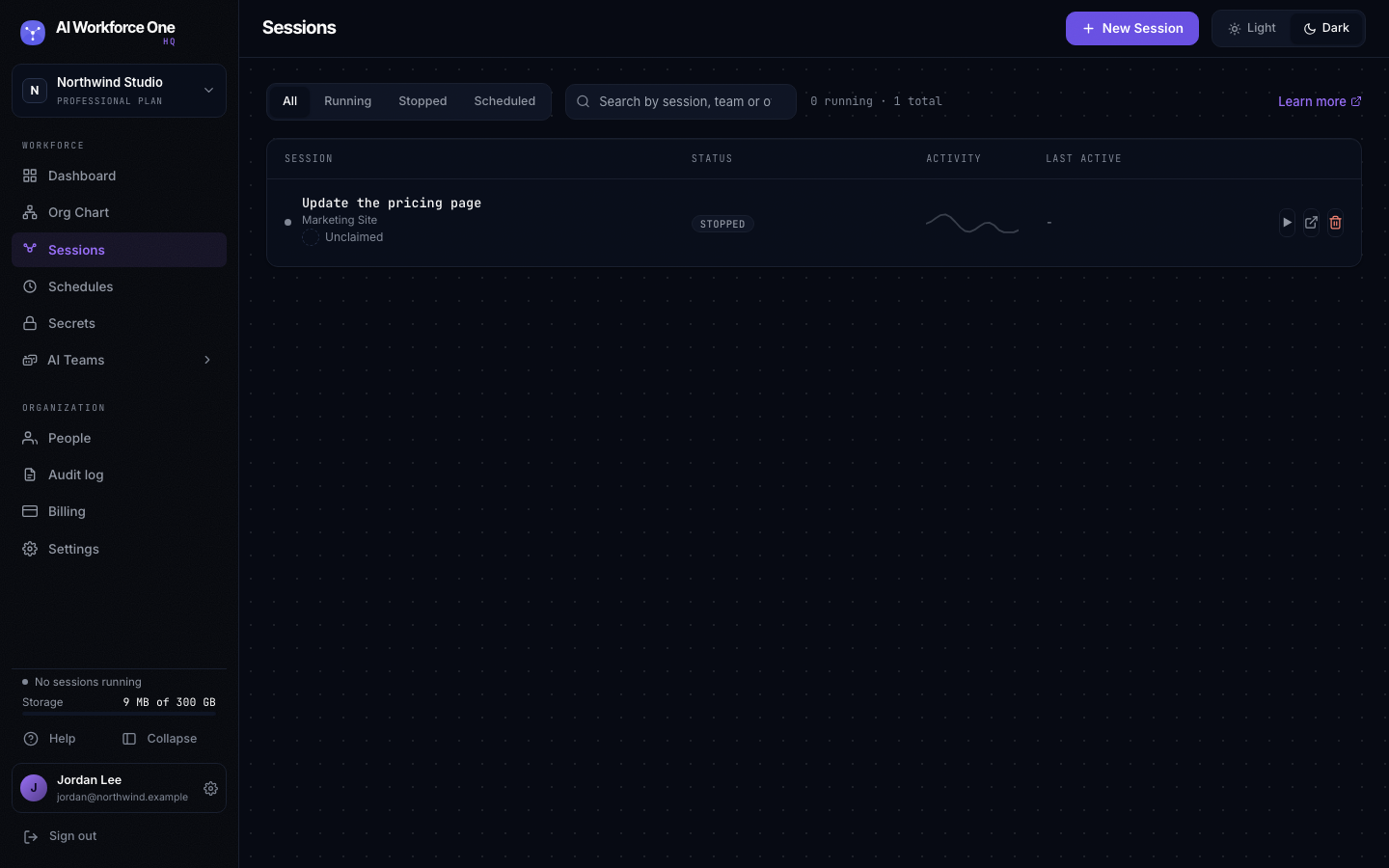
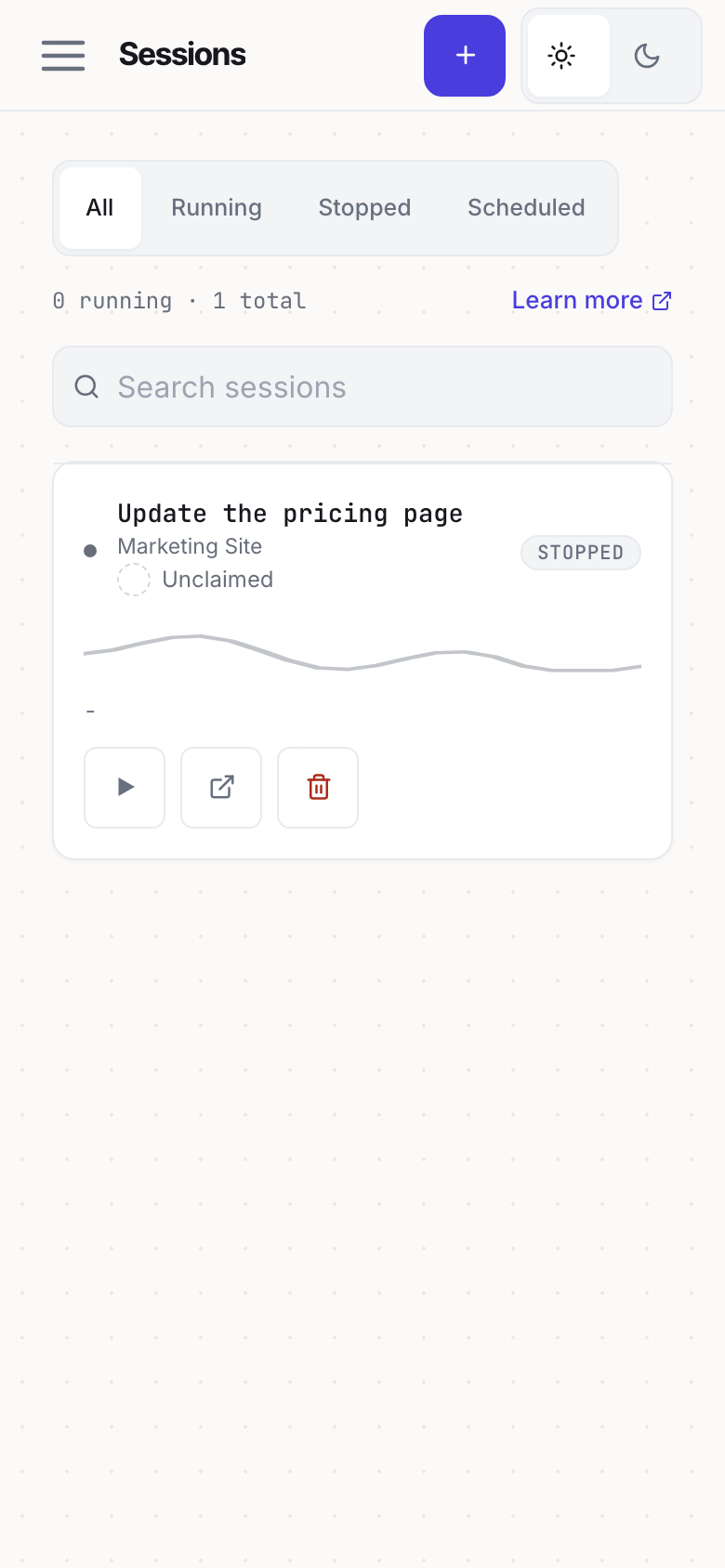
Sessions in the sidebar lists every session you can see, with its AI Team, status and when it was last active. Filter by Running, Stopped or Scheduled, or search by name.
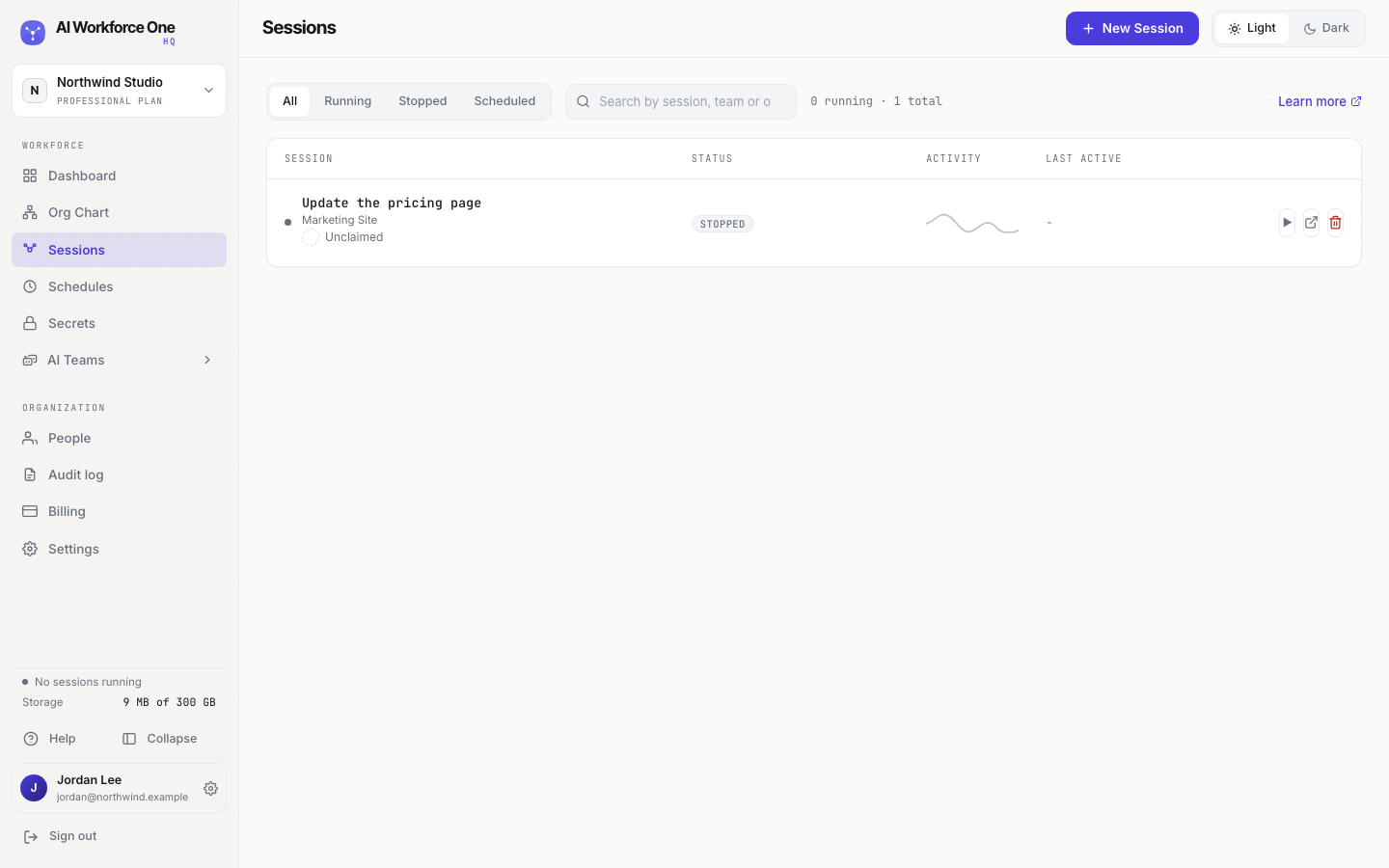

Editors and team owners start sessions. Only a session's owner types in it; others on the team can watch it. Organization owners and admins can operate and delete any session.