
Schedules
Have an AI Employee start work on its own, at the days and times you choose, whether you are online or not. Editors and team owners create schedules.
A schedule sends a prompt to an AI Employee at the times you pick, in plain language: no cron expressions. Use it for daily reports, weekly reviews or overnight jobs.
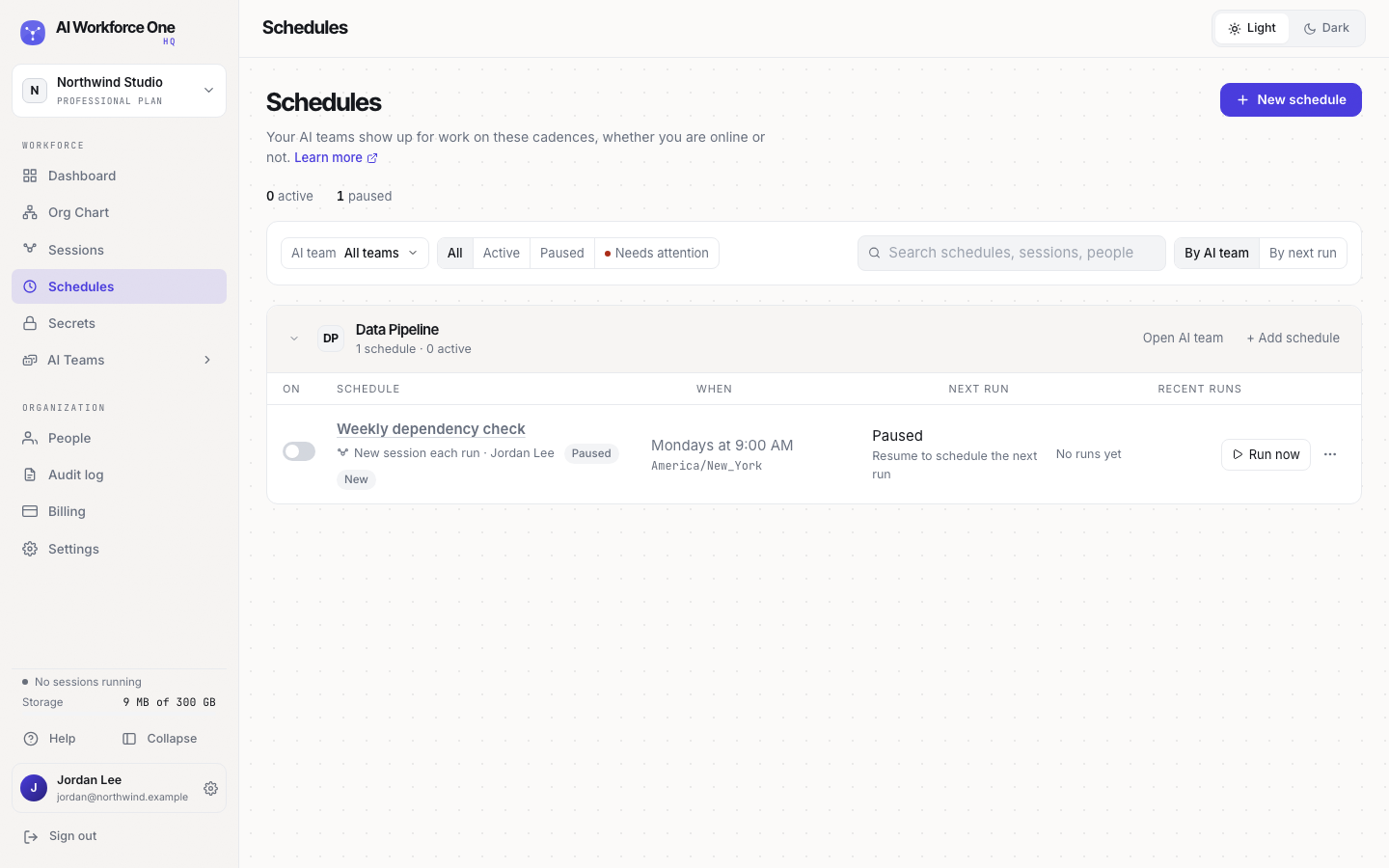
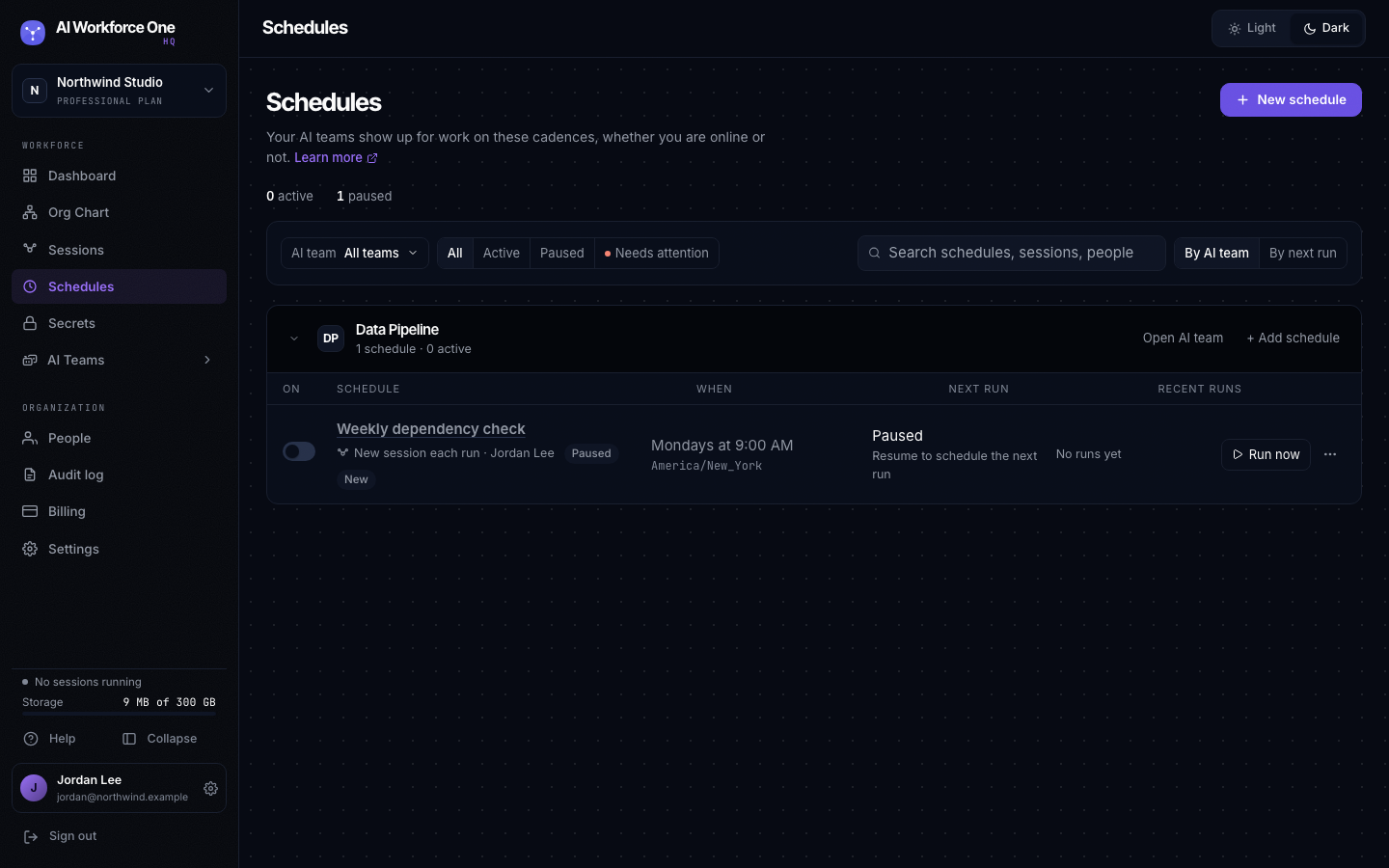
Create a schedule
- Open Schedules
Select Schedules in the sidebar, then New schedule. You can also use Add schedule on a team in the list.
- Basics
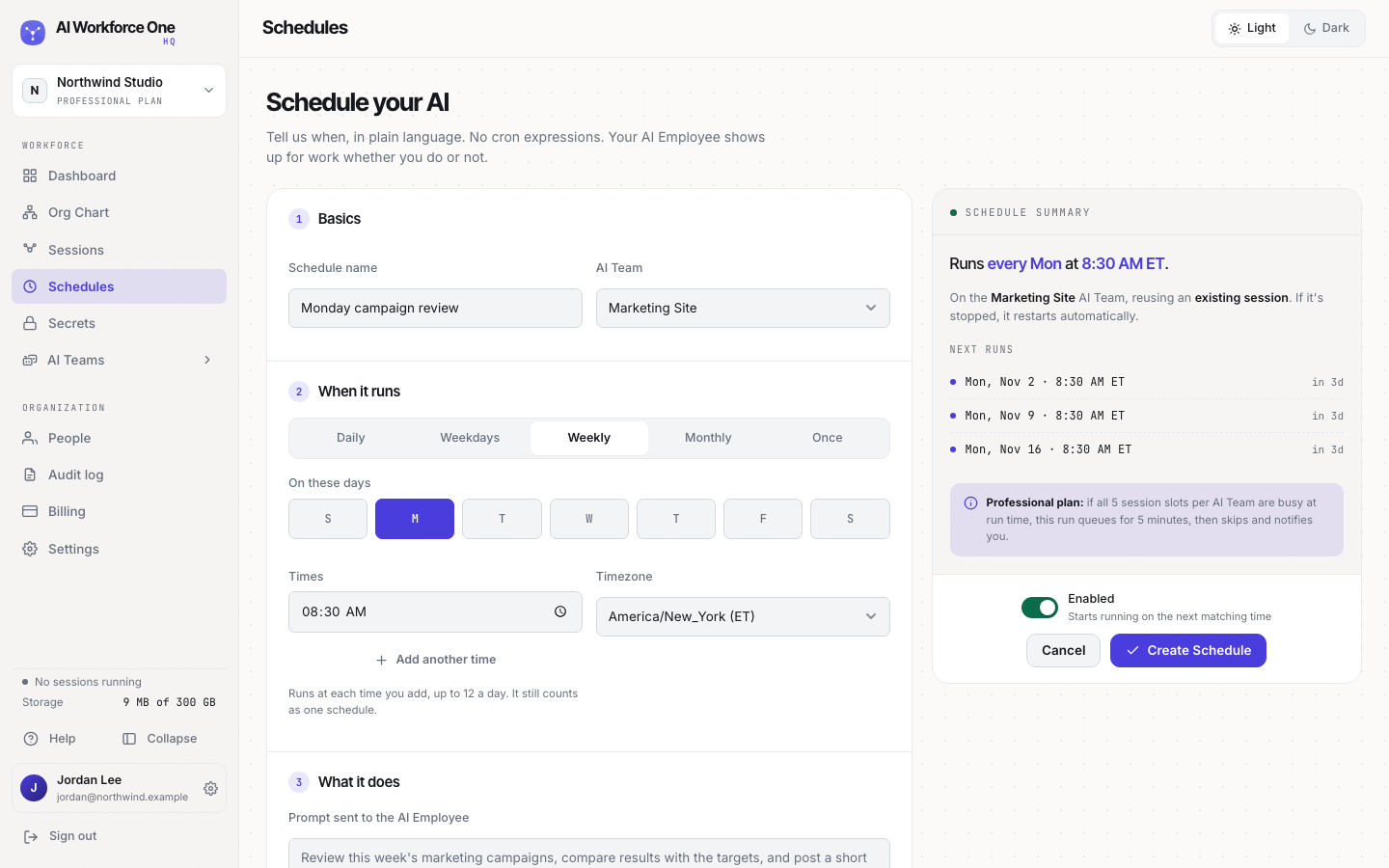
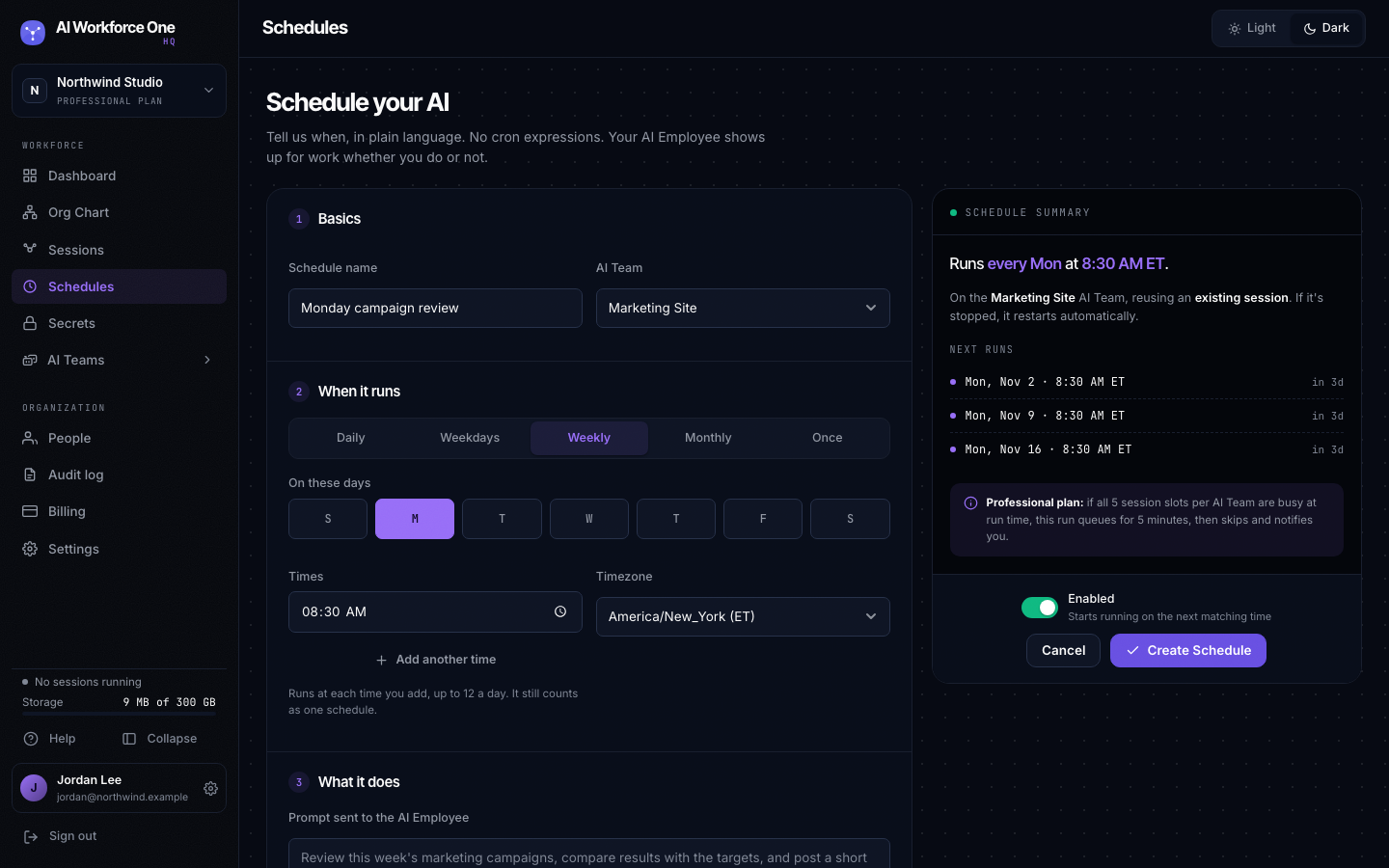
Name the schedule and choose the AI Team.
- When it runs
Choose Daily, Weekdays, Weekly, Monthly or Once, then the days and the time. Select Add another time to run more than once a day, up to 12 times. Pick the time zone. The summary on the right shows the next runs.
- What it does
Write the prompt, as if you typed it into the session at run time. Under Run as, choose Use existing session to keep the history and context between runs, or Create new each time for a clean start. Choose what happens if the session is stopped at run time: Restart it or Skip & notify me.
- Create it
Leave Enabled on to start on the next matching time, and select Create Schedule.
Scheduled sessions should usually use Autopilot, so nobody needs to approve each step. See permission modes.
A run types its prompt into the session's AI Employee. If the session has its terminal open at run time, the run is skipped and you are notified, and the terminal is left as it is. Switch the session back to its AI Employee for the next run.
Run, pause and edit
- Run now starts a run right away, without changing the schedule.
- The switch at the start of each row pauses or resumes a schedule.
- Open a schedule to edit it and see its recent runs.
When every session slot is busy
Each AI Team runs a limited number of sessions at once (5 on a Standard Cloud Computer). If all are busy at run time, the run waits for a free slot. A run that can't start in time is skipped, and you are notified. A run also waits when the team's Cloud Computer is too busy for another session (memory at 80% or more, or the processor working at full capacity); its history then says Cloud Computer busy. Needs attention in the filters lists schedules whose last run did not go well.
A prompt that starts with a command character
A prompt that starts with /, ! or # is one of Claude's own commands, not a task, so HQ does
not let you save one. A prompt also cannot contain hidden control characters
(tabs and line breaks are fine): a run types the prompt into the session, where such a character
would act as a key rather than as text.
When a session is waiting on a message
Another Claude session can send a message to your AI Employee's session. When the two sessions use different permission modes, Claude holds the message and asks in the session whether to Deliver it or Deny it, and waits until someone answers. While it waits, a scheduled run does not type into the session: the run shows as Not run and its details say a message is waiting. You're notified once until the message is answered, not on every run. Open the session's terminal, choose Deliver or Deny, and the next run goes ahead as usual. If the run had already typed its prompt when the message arrived, the details say the prompt is still in the input box.
When Claude asks to resume a long conversation
Schedules always continue the session's conversation so Claude keeps its context. Resuming a long conversation uses part of your Claude usage limit.
When Claude reopens a long conversation that has been idle for hours (for example after the nightly Cloud Computer update restarted the session), it can ask Resume this conversation? A scheduled run answers Resume and then types its prompt as usual. To start a new conversation instead, do it yourself in the session's terminal. If Claude asks in a way HQ does not recognize yet, the run types nothing, shows the session as unavailable, and its details say Claude is asking whether to resume: open the session's terminal and answer it once.
When a session is reassigned
A schedule that uses an existing session runs on the Claude login of the person it runs as. When someone reassigns that session to another person, the schedule has to move with it, or it stops running.
- When you reassign a session, the dialog lists the schedules that run on it, who they run as and when they run next. If you are a team owner or an organization owner or admin, Move these schedules to the new owner is ticked: they then run on the new owner's Claude login. If you untick it, or someone else reassigns the session, the schedules stop running until an admin or the new owner moves them.
- A schedule that was not moved shows Not running: this session now belongs to the new owner, on its row and on its page. Select Move to the owner to fix it. It moves only to the session's current owner, never to anyone else.
- The new owner is told. They get an email and a notice on the Schedules page: "N schedules now run on your Claude login", with a link to each. They can pause or edit them, and from then on only they can change a schedule's prompt and the session it runs in.
Schedules only move to someone who can manage schedules on the team (an editor or a team owner). If the new owner can only view the team, the dialog says the schedules will stop running, and Move to is not offered until they get edit access.
A schedule that starts a new session each run runs on the Claude login of the person who created it, and a reassign does not change that. Schedules that run on the team's API key do not run as a person, so a reassign does not affect them either.
Only the person a schedule runs as can change its prompt or the session it runs in, including switching between an existing session and a new one each run. Others on the team, organization owners and admins included, can still pause, rename, reschedule or delete it.
Editors and team owners create, change and run schedules. Anyone on the team can see them. Your plan sets how many schedules you can have. Moving schedules to someone else takes a team owner or an organization owner or admin; the session's owner can move them onto their own login.