
Cloud Computer sizes and Boost
Every AI Team runs on its own Cloud Computer. Boost gives a team more processors, memory and concurrent sessions. Organization owners and admins change the size.
Every AI Team starts on a Standard Cloud Computer. When a team needs more room, give it a Boost. The size applies to that team only.
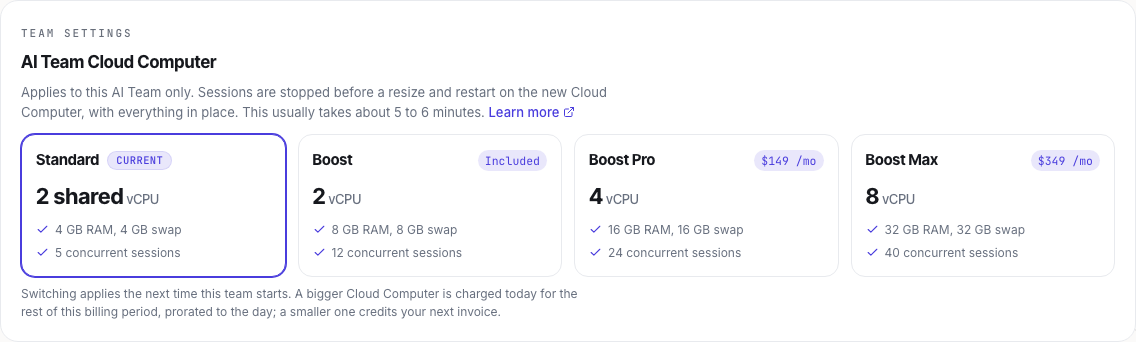
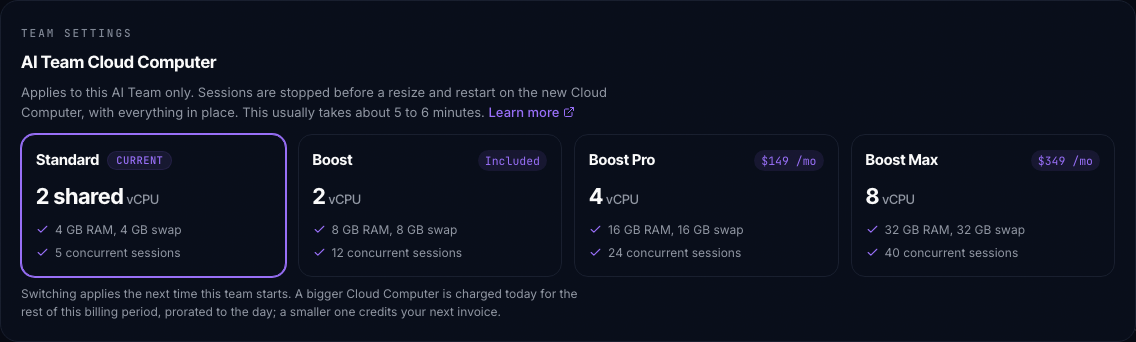
| Size | Processors | Memory | Concurrent sessions |
|---|---|---|---|
| Standard | 2 shared vCPU | 4 GB | 5 |
| Boost | 2 vCPU | 8 GB | 12 |
| Boost Pro | 4 vCPU | 16 GB | 24 |
| Boost Max | 8 vCPU | 32 GB | 40 |
Concurrent sessions is the most a team can run at once. A new session also needs room on the Cloud Computer: see When the Cloud Computer is busy.
Professional includes one Boost. Other Boosts are add-ons, charged per team per month. See Billing and plans for prices.
Change a team's size
- Open the team's settings
Open the team and select Settings. AI Team Cloud Computer shows the sizes, with the current one marked.
- Pick a size
Select the size you want and confirm. A bigger size is charged today for the rest of the billing period, prorated to the day. A smaller one credits your next invoice.
- Wait for the restart
The team restarts on the new Cloud Computer with everything in place. This usually takes about 5 to 6 minutes. Your sessions pause and come back on their own.
You can also assign Boosts from Billing, under Add-ons.
Organization owners and admins change a team's size and buy Boosts. During a trial, start your paid plan first.
When a team runs short of memory or processor
When a team's Cloud Computer is almost out of memory, or its processor has been working at full capacity, HQ says so on the team's page, in its Settings and at the top of its sessions. Owners and admins see Upgrade Cloud Computer with the price of the next size up. Everyone else sees who to ask. Running fewer AI Employees at the same time also helps.
When the Cloud Computer is busy
Most sessions use little memory, so a team can run many at once. One heavy task, such as a large build, a data job or a browser, can still fill the Cloud Computer. When its memory is at 80% or more, or its processor has been working at full capacity for a while, a new session does not start, even if the team is below its concurrent sessions. HQ says:
This AI Team's Cloud Computer is busy right now, so another session could not start. Stop a session you no longer need, or move the team to a bigger size, then try again.
Sessions that are already running keep running. Stop a session you no longer need, or give the team a bigger size. A scheduled run that finds the Cloud Computer busy waits or is skipped, the same as when every session slot is taken (see Schedules).
On the largest size your organization can buy, there is no upgrade button. When a bigger Cloud Computer exists with more of what the team is short of, HQ says so and that it is available on request. Owners and admins can select Contact support to ask for one. Everyone else is asked to talk to an owner or admin.
When a new size takes effect
When the new size applies depends on what the team is doing at the time.
A running team
- A bigger size applies now. The team restarts on the new Cloud Computer with everything in place. This usually takes about 5 to 6 minutes.
- A smaller size waits for the team's next restart, so your work is never stopped to make the machine smaller. HQ shows Restart now to apply if you'd rather not wait.
A stopped team
Nothing restarts. HQ shows "Boost Max applies the next time this team starts." (with the size you picked). The next time anyone starts a session on the team, its Cloud Computer starts on the new size, in one start. Open sessions takes you there.
Occasionally a start comes up on the old size first, for example when the new size is briefly unavailable in our cloud region. The team still starts, and a bigger size then follows once it is running, the same way as on a running team.
A sleeping team
A sleeping team wakes on its current size, exactly as you left it. A bigger size then applies once it is running, the same way as on a running team. A smaller size applies at the team's next restart.
A team that is starting
If the size changes just before the team starts, HQ shows "This team is starting on Boost Max." and it starts on the new size. If the start is already under way, a bigger size applies once the team is running, and a smaller one at its next restart.
If you restart to apply the change
HQ only says "Restarting now" when the restart actually started. Otherwise it tells you when the new size applies: the next time the team starts, as it starts, or once it is running. If something else is still changing the Cloud Computer, HQ asks you to try again once it's running.
Sleep and wake
A Cloud Computer sleeps when nobody uses it and nothing runs. Opening a session, or a scheduled run, wakes it. Waking takes 15 to 30 seconds up to 16 GB, and 30 to 45 seconds from 32 GB.